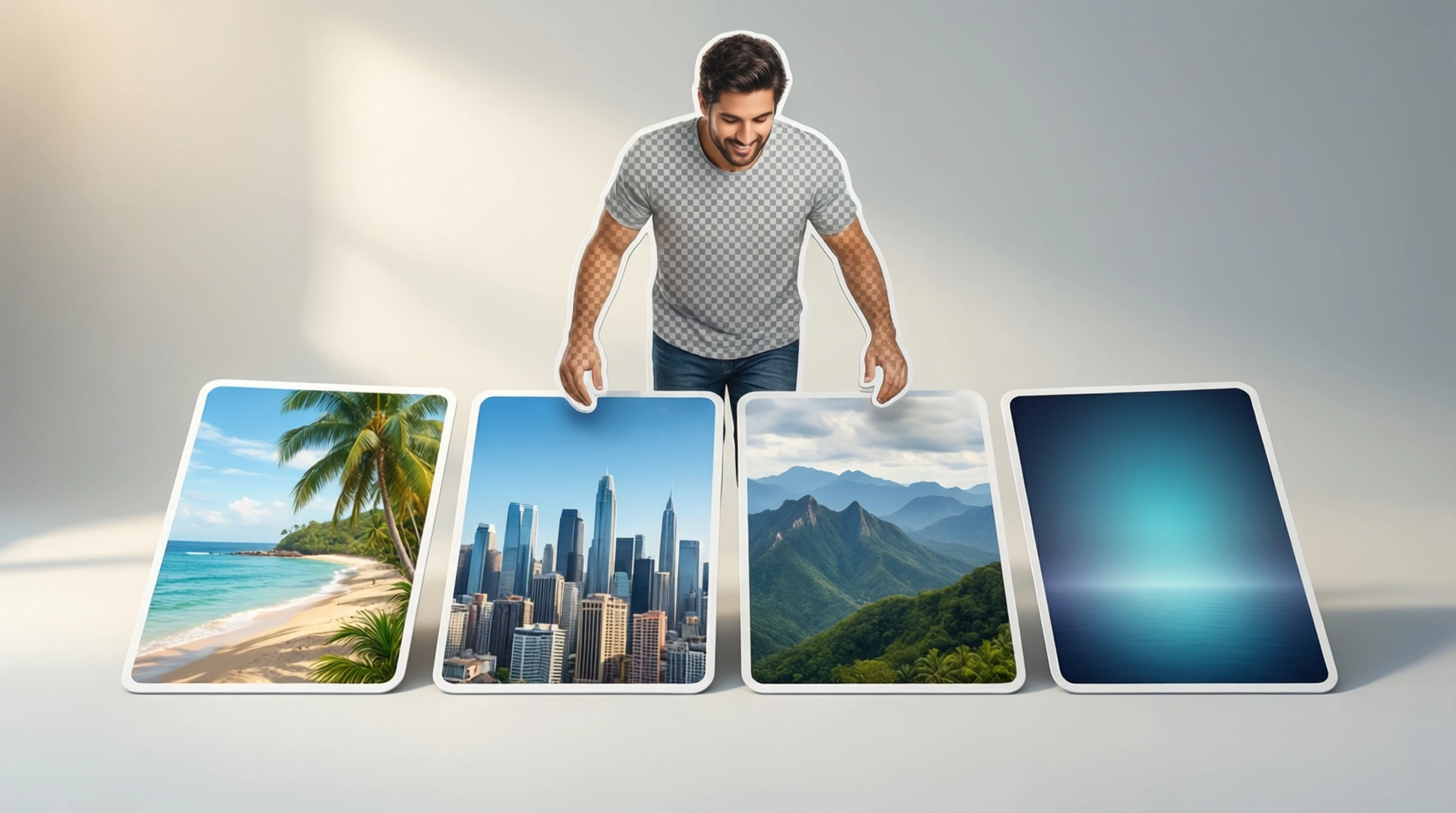
How to Add a New Background to Any Photo After Removing the Original
How to Add a New Background to Any Photo After Removing the Original
Removing the background from a photo is only half the job. The real creative power comes from what you do next: adding a new background that transforms your image into something polished, professional, or completely imaginative. Whether you need a clean white backdrop for a product listing, a scenic landscape behind a portrait, or a branded design for social media, the process follows the same reliable two-step workflow.
This guide walks you through everything you need to know about replacing photo backgrounds, from choosing the right backdrop to making your composite look convincingly real.
The Two-Step Workflow: Remove First, Then Replace
Every successful background replacement starts with a clean separation between your subject and the original background. Trying to overlay a new background without first removing the old one leads to visible edges, color bleed, and an obviously fake result.
Step 1: Remove the Original Background
Before you can add anything new, you need a transparent PNG of your subject. Here is how to do it:
- Upload your photo to an AI background removal tool
- Let the AI generate a precise cutout of your subject
- Download the result as a PNG file with transparency preserved
- Inspect the edges for any leftover fringing or artifacts
The quality of your final composite depends heavily on the quality of this first step. A clean cutout with smooth, accurate edges around hair, clothing, and fine details makes everything that follows easier.
Step 2: Place Your Subject on a New Background
Once you have your transparent PNG, you can layer it on top of any background using a photo editor, design tool, or even a presentation app. The key is positioning your subject naturally within the new scene so the final image looks intentional rather than pasted together.
Types of Replacement Backgrounds
Not all backgrounds serve the same purpose. Choosing the right type depends on your goal, your audience, and where the final image will appear.
Solid Colors
A flat, single-color background is the simplest and most versatile option. It keeps the focus entirely on your subject and works well for:
- Product listings on Amazon, eBay, and Shopify (pure white is often required)
- Professional headshots for LinkedIn, resumes, and company websites
- App icons and logos that need clean, distraction-free imagery
- Passport and ID photos that require specific background colors
Popular solid color choices include white, light gray, navy blue, and soft pastels. You can create these in any editor by simply filling the background layer with your chosen color.
Gradients
Gradients add visual depth without introducing distracting elements. They draw the eye toward the subject and create a sense of dimension. Common gradient styles include:
- Linear gradients that transition from one color to another across the frame
- Radial gradients that spotlight the subject with a lighter center and darker edges
- Subtle gray-to-white gradients for a professional studio look
- Brand-colored gradients that reinforce company identity
Stock Photos and Scenic Backdrops
Placing your subject in a real-world setting creates context and tells a story. A portrait against a city skyline feels urban and energetic. The same portrait against a mountain landscape feels adventurous and free. Stock photo backgrounds work well for:
- Travel and lifestyle content
- Real estate marketing (placing furniture in staged rooms)
- Event invitations and announcements
- Editorial and magazine-style imagery
Custom Scenes and Illustrations
For maximum creative control, design your own background from scratch. This could be an illustrated pattern, an abstract digital painting, a collage of textures, or a fully rendered 3D environment. Custom backgrounds are ideal for:
- Brand campaigns with specific visual guidelines
- Social media content that needs to stand out
- Artistic projects and digital portfolios
- Themed promotions (holidays, product launches, seasonal sales)
Step-by-Step Tutorial: Adding a New Background with Free Tools
You do not need expensive software to create professional-looking composites. Here are detailed walkthroughs using three popular free tools.
Method 1: Using Canva (Browser-Based)
Canva is one of the most accessible design tools available, and its free tier handles background replacement well.
- Open Canva and create a new design with the dimensions you need (e.g., 1080x1080 for Instagram)
- Set your background by clicking "Background" in the left panel and choosing a color, gradient, or uploading a custom image
- Upload your transparent PNG by clicking "Uploads" and dragging your cutout file into the canvas
- Position and resize your subject by dragging the corners and centering it within the frame
- Adjust layers to make sure your subject sits on top of the background layer
- Add finishing touches like text, filters, or design elements
- Export as PNG or JPG at your desired quality setting
Method 2: Using GIMP (Desktop, Free and Open Source)
GIMP provides full professional editing capabilities at no cost. It takes more effort to learn, but offers far greater control.
- Open your background image in GIMP (File > Open)
- Import your transparent PNG as a new layer (File > Open as Layers)
- Scale and position the subject layer using the Scale Tool (Shift+S) and Move Tool (M)
- Refine edges by selecting the subject layer, going to Filters > Light and Shadow > Drop Shadow to add a subtle shadow
- Match color temperature using Colors > Curves or Colors > Hue-Saturation on the subject layer
- Flatten and export (Image > Flatten Image, then File > Export As)
Method 3: Using Photopea (Browser-Based Photoshop Alternative)
Photopea runs entirely in your browser and offers an interface nearly identical to Photoshop.
- Navigate to photopea.com and open your background image (File > Open)
- Place your transparent PNG on top (File > Open & Place)
- Use Free Transform (Ctrl+T / Cmd+T) to scale and position the subject
- Add a layer mask to the subject layer for fine-tuning any edges
- Apply Gaussian Blur to the background layer (Filter > Blur > Gaussian Blur) for a shallow depth-of-field effect if desired
- Adjust Levels or Curves on the subject to match the background lighting
- Export as PNG or JPG (File > Export As)
Matching Lighting and Perspective for Realistic Composites
The number one reason composites look fake is mismatched lighting. When the light on your subject comes from the left but the background scene is lit from the right, the viewer's brain instantly registers something as wrong, even if they cannot articulate what it is.
Light Direction
Study both your subject and your chosen background for lighting cues:
- Where are the shadows falling? Shadows on the subject should fall in the same direction as shadows in the background scene
- Where are the highlights? Bright spots on the subject's face or body should align with the apparent light source in the background
- What is the light quality? Harsh, direct sunlight creates sharp shadows. Overcast or indoor lighting creates soft, diffused shadows. Match accordingly
Perspective and Scale
Your subject needs to look like they physically belong in the scene:
- Eye level matters: If the background was photographed from a low angle, a subject shot straight-on will look out of place
- Scale consistency: A person placed into a landscape should be proportional to other objects in the scene (trees, buildings, cars)
- Focal plane: If the background has a shallow depth of field with blur, your subject should be sharp only if they are positioned at the focal distance
Color Temperature
Different lighting conditions cast different color temperatures:
- Warm light (golden hour, tungsten bulbs) adds orange and yellow tones
- Cool light (overcast skies, fluorescent lighting) adds blue tones
- Neutral light (midday sun, flash) sits between warm and cool
If your subject was photographed under warm indoor lighting but your background is a cool-toned snowy mountain, you will need to adjust the subject's color temperature to match. Most editors offer white balance or color temperature sliders for this purpose.
Color Theory: Choosing Backgrounds That Complement Your Subject
The right background color does more than fill space. It directs attention, sets a mood, and reinforces your message.
Complementary Colors
Colors opposite each other on the color wheel create strong visual contrast. A subject wearing blue stands out dramatically against an orange background. This approach works well for:
- Marketing materials that need to grab attention
- Product photos where the item should pop off the screen
- Social media posts designed to stop the scroll
Analogous Colors
Colors next to each other on the color wheel create harmony and cohesion. A subject in a green dress against a teal or blue-green background feels unified and elegant. Use analogous schemes for:
- Professional portraits and headshots
- Luxury product photography
- Brand imagery that needs to feel polished and calm
Neutral Backgrounds for Versatility
When in doubt, neutral backgrounds (white, gray, beige, soft cream) work with virtually any subject. They are the safest choice for:
- E-commerce product shots
- Resume and LinkedIn headshots
- Images that will be reused across multiple contexts
Mood and Emotion Through Color
- Red backgrounds convey energy, urgency, and passion
- Blue backgrounds suggest trust, calm, and professionalism
- Green backgrounds evoke nature, health, and growth
- Black backgrounds create drama, sophistication, and luxury
- Yellow backgrounds radiate optimism, warmth, and creativity
Popular Background Ideas by Use Case
Professional Headshots
- Soft gray gradient for corporate and LinkedIn profiles
- Muted blue or navy for a trustworthy, executive look
- Blurred office or conference room setting for contextual realism
- Clean white for maximum versatility across platforms
Product Photography
- Pure white (#FFFFFF) for Amazon and marketplace compliance
- Light gray for a subtle studio feel without harsh contrast
- Lifestyle settings (kitchen countertop, desk, shelf) for contextual product shots
- Textured surfaces (marble, wood, linen) for artisan and handmade goods
Social Media Content
- Bold, brand-colored solid backgrounds for consistency across posts
- Trendy gradient backgrounds (coral to pink, purple to blue) for aesthetic feeds
- Pattern backgrounds (geometric, floral, abstract) for visual interest
- Seasonal themes (autumn leaves, snowflakes, spring flowers) for timely content
Invitations and Announcements
- Elegant textures (watercolor washes, gold foil patterns) for weddings
- Festive backgrounds (confetti, balloons, sparkles) for birthday and celebration cards
- Clean, minimal layouts with ample white space for formal events
- Themed illustrations for baby showers, graduations, and holidays
Creative Effects for Standout Composites
Bokeh and Blur Effects
A softly blurred background with circular light spots (bokeh) makes your subject pop and creates a professional, camera-quality look. You can achieve this by:
- Applying Gaussian blur to your background layer before placing the subject
- Using dedicated bokeh overlay images layered behind the subject
- Setting the blur radius between 5-15 pixels for a natural shallow depth-of-field feel
Abstract and Geometric Backgrounds
Abstract backgrounds made from shapes, gradients, and color blocks give your composite a modern, designed feel. They work particularly well for:
- Tech company marketing materials
- Music and entertainment promotional images
- Portfolio presentations and case studies
- YouTube thumbnails and podcast cover art
Branded Backgrounds
Create a reusable branded background template that includes your company colors, logo watermark, or pattern. This ensures every image you produce reinforces brand recognition. Include elements like:
- A subtle logo or monogram in one corner
- Brand colors as the dominant palette
- Consistent typography style for any overlaid text
- A repeating pattern or texture that is distinctly yours
Texture and Material Backgrounds
Placing a product or subject against a textured surface adds tactile richness to your image:
- Concrete and stone for industrial and minimalist aesthetics
- Wood grain for natural, artisan, and rustic vibes
- Fabric and linen for soft, lifestyle-oriented imagery
- Paper and cardboard for eco-friendly and handmade branding
Tips for Seamless Edges
Even with a perfect background removal, the composite can look pasted together if you do not pay attention to edge quality. Here is how to make your subject blend naturally.
Feathering the Edges
A hard, pixel-sharp edge around your subject screams "cut and paste." Softening the edge by 1-2 pixels creates a natural transition:
- In GIMP: Select > Feather (set to 1-2 pixels)
- In Photopea: Use a soft eraser brush along the edge of the subject's layer mask
- In Canva: The built-in background remover automatically applies slight feathering
Adding Realistic Shadows
Objects in the real world cast shadows. Without one, your subject appears to float above the background. Add shadows by:
- Duplicating the subject layer and filling it with black
- Applying Gaussian blur to soften the shadow
- Reducing opacity to around 20-40%
- Offsetting the shadow slightly in the direction opposite the light source
- Using the Transform tool to skew the shadow for a more natural angle
Alternatively, most editors have a built-in Drop Shadow effect that handles this in one step.
Color Matching at the Edges
Sometimes the original background leaves a slight color fringe around your subject (often green, blue, or white). Fix this by:
- Using the "Remove Color Fringe" or "Defringe" option if your editor has one
- Painting over the fringe on the layer mask with a small, soft brush
- Slightly contracting the selection before applying the mask to trim away the outermost pixels
Adding an Environment Light Wrap
For advanced composites, an environment light wrap blends the background colors into the very edge of the subject, simulating how real light wraps around objects. This technique adds significant realism and is available in GIMP and Photopea through layer blending modes.
Common Mistakes That Make Composites Look Fake
Avoid these pitfalls to keep your background replacements looking believable.
1. Ignoring Light Direction
If the light hits your subject from the left but the background scene is lit from the right, the composite instantly looks wrong. Always match lighting angles between subject and background.
2. Forgetting Shadows
A subject floating in space without any shadow or ground contact looks like a sticker placed on top of a poster. Always add at least a subtle drop shadow or contact shadow.
3. Mismatched Resolution
Placing a low-resolution subject on a crisp, high-resolution background (or vice versa) creates an obvious quality mismatch. Ensure both layers have similar sharpness and resolution.
4. Over-Saturated or Under-Saturated Colors
If your subject's colors are much more vivid or much more muted than the background, the two layers will not feel cohesive. Adjust saturation and vibrancy to create consistency.
5. Ignoring Atmospheric Perspective
In outdoor scenes, distant objects appear lighter, bluer, and less detailed due to atmospheric haze. If your subject is supposed to be far from the camera but appears with full contrast and detail, the illusion breaks.
6. Harsh, Unfeathered Edges
Jagged or overly sharp edges around the subject are the most common giveaway. Always feather your edges slightly and check for any leftover fringe from the original background.
7. Wrong Scale and Proportions
A person who appears too large or too small relative to the background environment immediately looks unnatural. Use reference objects in the background (doorways, furniture, trees) to gauge the correct scale.
Free Background Resources
You do not need to create every background from scratch. Here are reliable free sources for high-quality backgrounds.
Stock Photo Sites
- Unsplash (unsplash.com) - High-resolution photos, free for commercial use
- Pexels (pexels.com) - Curated stock photos and videos, free to use
- Pixabay (pixabay.com) - Large library of free images, illustrations, and vectors
- StockSnap (stocksnap.io) - Hundreds of new photos added weekly
Gradient and Color Tools
- uiGradients (uigradients.com) - Beautiful gradient presets with hex codes
- Coolors (coolors.co) - Color palette generator to find complementary schemes
- CSS Gradient (cssgradient.io) - Create and preview gradient backgrounds visually
- Mesh Gradient (meshgradient.in) - Generate organic, multi-point mesh gradients
Texture and Pattern Resources
- Subtle Patterns (subtlepatterns.com) - Tileable background patterns
- Transparent Textures (transparenttextures.com) - Overlay-ready texture patterns
- Hero Patterns (heropatterns.com) - SVG background patterns with customizable colors
Background-Specific Collections
Search for "background" or "backdrop" on any of the stock photo sites above to find purpose-built background images. Popular search terms include:
- "Studio backdrop"
- "Bokeh background"
- "Abstract gradient"
- "Textured wall"
- "Nature landscape background"
Frequently Asked Questions
Can I add a new background to a photo without Photoshop?
Absolutely. Free tools like Canva, GIMP, Photopea, and even Google Slides allow you to layer a transparent PNG on top of any background. You do not need Photoshop or any paid software to create professional-quality composites.
What file format should I use for the cutout?
Always save your background-removed image as a PNG file. PNG supports transparency, which is essential for layering your subject cleanly over a new background. JPEG does not support transparency and will fill the removed area with white.
How do I make the new background look realistic?
Focus on three things: matching the light direction between subject and background, adding a subtle shadow beneath the subject, and ensuring the color temperature of both layers is consistent. These three adjustments account for most of the perceived realism in a composite.
What resolution should my background image be?
Your background image should be at least the same resolution as your final output. If you are creating a 1080x1080 pixel social media post, your background should be at least 1080x1080 pixels. Using a background that is too small will result in visible pixelation.
Can I use AI to add a new background automatically?
Some AI tools offer one-click background replacement by combining removal and replacement in a single step. However, for maximum creative control, the two-step approach (remove first with an AI tool, then add your chosen background manually in an editor) gives you far more flexibility over positioning, scaling, and fine-tuning.
Is it legal to use stock photos as backgrounds for commercial projects?
Yes, as long as you use images from sites that offer royalty-free licenses for commercial use. Sites like Unsplash, Pexels, and Pixabay explicitly allow commercial use of their images. Always check the license terms of any image you download to confirm.
Transform Your Photos with a New Background Today
The ability to remove a background and replace it with something better opens up limitless creative possibilities. Whether you are building a professional portfolio, running an e-commerce store, creating social media content, or just having fun with personal photos, the workflow is the same: start with a clean cutout, choose the right background, and refine the details until the composite looks natural.
Here is how to get started right now:
- Upload your photo to our free AI background removal tool
- Download your transparent PNG with the background cleanly removed
- Open any free editor (Canva, GIMP, or Photopea) and place your subject on a new background
- Fine-tune the positioning, shadows, and color matching
- Export and share your finished image
The first step is the most important. A precise, high-quality background removal makes every subsequent step easier and produces a more convincing final result.
Remove Your Background Free and Start Creating -->
Join thousands of creators, business owners, and designers who use our AI tool as the foundation for stunning background replacements. Upload your first image now and see how easy it is to transform any photo with a new background.