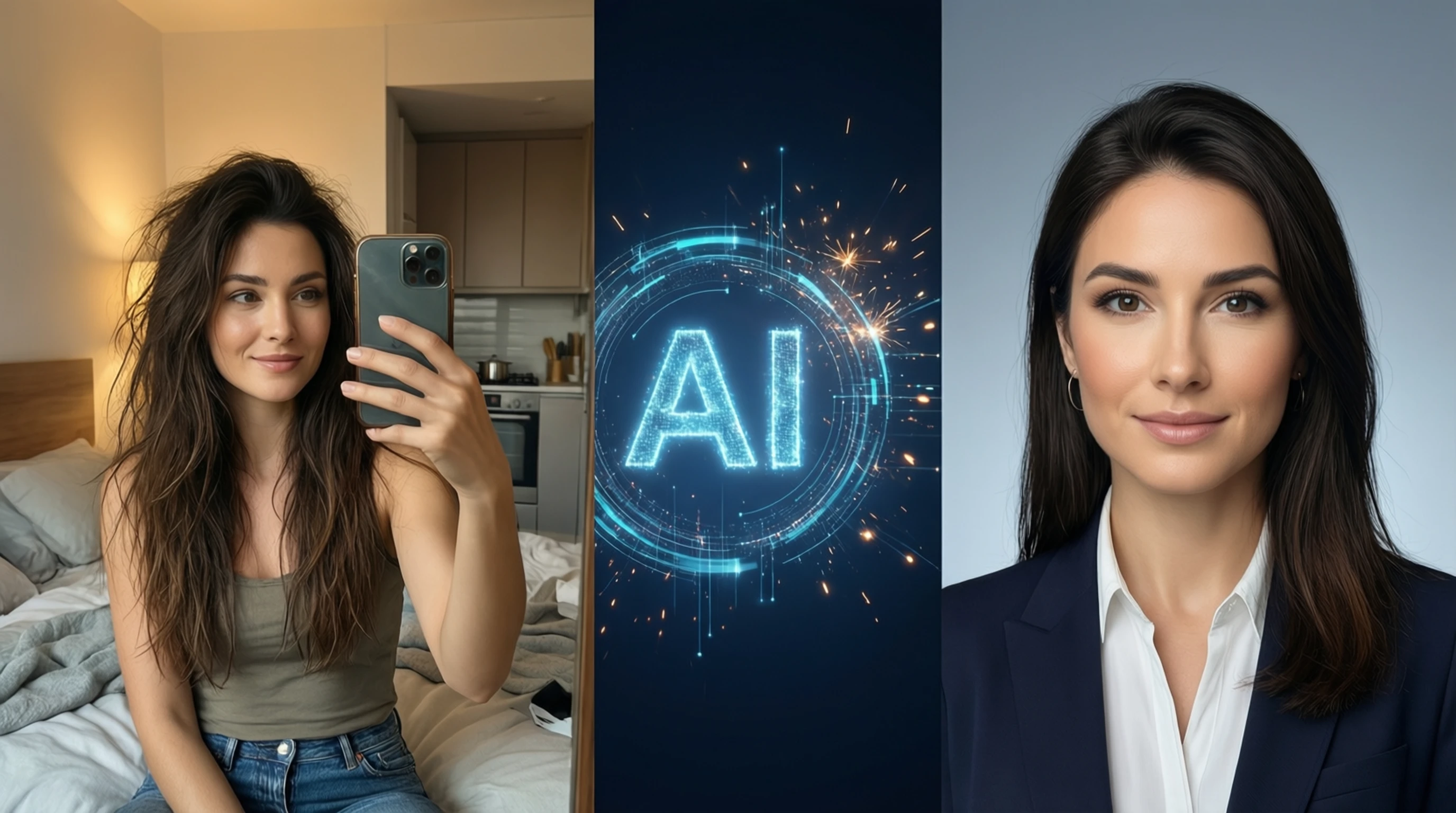
Create Professional Headshots from Selfies Using AI Background Removal
Create Professional Headshots from Selfies Using AI Background Removal
A professional headshot is no longer optional. Whether you are updating your LinkedIn profile, building a personal website, or preparing for a job search, a polished headshot is one of the most important assets in your personal brand. The problem? Traditional headshot photography sessions cost anywhere from $150 to $500 or more, and they require scheduling, travel, and wardrobe planning.
The good news is that AI-powered background removal has made it possible to create studio-quality headshots from nothing more than a well-taken selfie and a few minutes of editing. In this guide, you will learn exactly how to do it -- step by step.
Why Professional Headshots Matter
Your headshot is often the first impression people have of you online. Research shows that LinkedIn profiles with professional photos receive 21 times more profile views and 36 times more messages than those without. But headshots are not just for LinkedIn.
Where You Need a Professional Headshot
- LinkedIn -- The most common place recruiters and clients evaluate you
- Resumes and cover letters -- Increasingly common in creative and international markets
- Personal websites and portfolios -- Essential for freelancers, consultants, and entrepreneurs
- Business cards -- A photo makes your card more memorable and personal
- Company team pages -- Consistent headshots build brand trust
- Email signatures -- A headshot in your email footer adds credibility
- Speaker profiles and conference bios -- Event organizers expect a high-quality photo
- Social media accounts -- Twitter/X, GitHub, Slack workspaces, and more
The Cost of Traditional Headshot Photography
Hiring a professional photographer for headshots is effective but expensive. Here is what you can expect to pay:
| Service Level | Typical Cost | What You Get |
|---|---|---|
| Budget studio | $50 - $100 | 1-2 edited photos, basic backdrop |
| Mid-range photographer | $150 - $300 | 3-5 edited photos, multiple backdrops, outfit changes |
| Premium photographer | $300 - $500+ | 10+ edited photos, hair and makeup, professional lighting, retouching |
| Corporate bulk booking | $100 - $200 per person | On-site photographer for teams, consistent branding |
For many professionals -- especially students, freelancers, and job seekers -- spending hundreds of dollars on a single photo is not realistic. That is where the selfie-to-headshot workflow comes in.
How to Take the Perfect Selfie for Headshot Conversion
The quality of your final headshot depends heavily on the quality of your source selfie. AI background removal can handle the backdrop, but it cannot fix bad lighting, awkward angles, or an unflattering expression. Follow these guidelines to capture the best possible starting image.
Lighting
Lighting is the single most important factor in a great headshot. Poor lighting creates harsh shadows, uneven skin tones, and an unprofessional look.
- Face a window -- Natural, indirect light from a window creates soft, even illumination across your face. This is the simplest way to get flattering light without any equipment.
- Avoid overhead lighting -- Ceiling lights cast downward shadows under your eyes, nose, and chin.
- Never use direct flash -- The built-in flash on your phone creates flat, washed-out results with red-eye.
- Shoot during the golden hour -- If shooting outdoors, the hour after sunrise or before sunset provides warm, directional light.
- Use a ring light -- If natural light is not available, a ring light ($15-$30) provides even, shadow-free illumination ideal for selfies.
Camera Angle and Distance
- Hold the phone at eye level or slightly above -- This is the most flattering angle for most face shapes. Avoid shooting from below, which exaggerates the chin and nostrils.
- Extend your arm fully or use a tripod -- Holding the phone too close creates lens distortion that widens the nose and narrows the ears. A distance of 2 to 4 feet is ideal.
- Use the rear camera when possible -- The rear camera on most phones has a better lens and higher resolution than the front-facing camera. Use a timer or remote shutter.
- Center your face in the frame -- Leave some space above your head and on both sides. You can crop later, but you cannot add pixels back.
Expression and Posture
- Relax your shoulders -- Tension in your shoulders translates directly to tension in your face.
- Slight head tilt -- A very slight tilt (5-10 degrees) looks natural and approachable. Avoid dramatic tilts.
- Genuine smile -- Think of something that makes you happy right before you take the shot. A forced smile is easy to spot.
- Eyes engaged -- Look directly into the camera lens, not at the screen. This creates the illusion of eye contact with the viewer.
- Jaw slightly forward -- This defines the jawline and reduces the appearance of a double chin.
Clothing and Grooming
- Wear solid colors -- Busy patterns, logos, and graphics distract from your face. Navy blue, charcoal gray, black, and white are safe choices.
- Avoid bright white -- Pure white clothing can blow out or compete with a white background. Off-white or cream works better.
- Choose necklines that suit you -- V-necks and collared shirts tend to be the most universally flattering.
- Groom before shooting -- Fix your hair, check for lint, and ensure your clothing is wrinkle-free.
- Keep jewelry minimal -- Simple earrings or a watch are fine. Avoid anything that catches the light and creates distracting reflections.
Step-by-Step: Selfie to Professional Headshot with AI Background Removal
Once you have captured a great selfie, follow these steps to transform it into a professional headshot.
Step 1: Select Your Best Photo
Take at least 10-15 selfies with slight variations in expression, angle, and posture. Review them on a larger screen if possible, and select the one where:
- Your expression looks natural and confident
- The lighting is even across your face
- Your eyes are sharp and in focus
- There are no distracting elements in the foreground
Step 2: Upload to the AI Background Removal Tool
Navigate to Remove-Backgrounds.net and upload your selected selfie. The tool accepts JPG, PNG, and WebP formats up to 10MB. Your image is processed securely and never stored on our servers.
Step 3: AI Processing
The AI model analyzes your image and creates a precise mask that separates you from the background. This typically takes just 2-3 seconds. The deep learning model is trained to handle:
- Complex hair boundaries (curly hair, flyaways, fine strands)
- Semi-transparent elements (glasses, thin fabrics)
- Varied skin tones and lighting conditions
- Multiple subjects (though for headshots, a single subject works best)
Step 4: Review the Cutout
Examine the result carefully. Pay attention to:
- Hair edges -- Are they clean and natural-looking, or are there jagged artifacts?
- Clothing boundaries -- Is the outline smooth?
- Ears and jawline -- These areas sometimes need extra attention.
- Glasses -- If you wear glasses, check that the frames and lenses are preserved correctly.
Step 5: Choose Your New Background
This is where the magic happens. A professionally chosen background transforms a casual selfie into a headshot that looks like it was taken in a studio. Download the transparent PNG and place it on your chosen background using any image editor.
Step 6: Export and Optimize
Save your final headshot in the appropriate format and dimensions for your target platform (see the platform-specific guide below).
Choosing the Right Background for Your Headshot
The background you choose communicates as much about your professionalism as your expression and clothing. Here are the most effective options.
Solid Color Backgrounds
Solid backgrounds are the gold standard for professional headshots. They are clean, timeless, and universally accepted.
| Background Color | Best For | Mood |
|---|---|---|
| White (#FFFFFF) | Corporate, medical, academic | Clean, modern, transparent |
| Light gray (#E8E8E8) | General professional use | Neutral, sophisticated |
| Medium gray (#888888) | Creative professionals | Balanced, versatile |
| Navy blue (#1B365D) | Finance, law, consulting | Trustworthy, authoritative |
| Dark charcoal (#333333) | Executive, leadership | Bold, commanding |
| Soft blue (#B8D4E3) | Healthcare, education | Calm, approachable |
Gradient Backgrounds
A subtle gradient adds depth and visual interest without being distracting. A light-to-slightly-darker gradient in gray or blue is a popular choice for modern corporate headshots. Avoid dramatic color shifts or multicolor gradients.
Blurred Office or Nature Settings
For a more casual yet professional look, consider placing your cutout against:
- A blurred office interior -- Suggests a professional environment without specific branding
- A softly blurred outdoor scene -- Works well for creative industries, startups, and coaching
- An abstract bokeh pattern -- Provides depth and warmth
The key rule: the background should never compete with your face for attention. If someone notices the background before they notice you, it is too busy.
Post-Processing Tips for a Polished Result
After removing the background and placing your headshot on a new one, a few finishing touches can make the difference between "good enough" and "truly professional."
Crop Ratios
Different platforms and use cases require different crop ratios. Here are the most common:
- 1:1 (square) -- LinkedIn, Slack, most social media profile pictures
- 4:5 (portrait) -- Instagram posts, some company directories
- 3:4 (portrait) -- Resumes, business cards, speaker bios
- 16:9 (landscape) -- Zoom backgrounds, email banners, website hero sections
When cropping, follow the rule of thirds: position your eyes roughly one-third of the way down from the top of the frame.
Color Correction
- White balance -- Ensure your skin tone looks natural, not too warm (orange) or too cool (blue).
- Exposure -- Brighten slightly if your face appears underexposed. Avoid blowing out highlights.
- Contrast -- A slight contrast increase adds definition. Do not overdo it -- you are not creating a movie poster.
- Saturation -- Reduce saturation slightly for a more muted, professional tone. Oversaturated photos look amateur.
Sharpening
Apply subtle sharpening to your eyes and facial features. Most photo editors have a "sharpen" or "clarity" slider. Keep it under 25% -- oversharpening creates an unnatural, crunchy texture that is immediately noticeable.
Skin Retouching (Optional)
Light retouching is acceptable and common in professional headshots:
- Remove temporary blemishes (pimples, scratches)
- Reduce under-eye shadows slightly
- Even out skin tone
Do not remove permanent features like moles, freckles, or smile lines. The goal is to look like your best self, not a different person.
Platform-Specific Headshot Dimensions
Each platform has its own requirements for profile images. Using the wrong size results in blurry, cropped, or stretched photos. Here is a reference table for the most common platforms.
| Platform | Recommended Size | Aspect Ratio | Format | Notes |
|---|---|---|---|---|
| 400 x 400 px (min) | 1:1 | JPG or PNG | Displays at 200x200 in feed; upload at 800x800 for sharpness | |
| Zoom | 150 x 150 px (min) | 1:1 | JPG or PNG | Appears small; use a tight crop with clear face |
| Slack | 512 x 512 px | 1:1 | JPG or PNG | Displayed as a circle; keep face centered |
| Microsoft Teams | 648 x 648 px | 1:1 | JPG or PNG | Higher resolution for better quality in meetings |
| Google Workspace | 250 x 250 px (min) | 1:1 | JPG or PNG | Upload at 500x500 or higher |
| Email signature | 100-200 px wide | 1:1 or 3:4 | JPG or PNG | Keep file size under 50KB for fast loading |
| Twitter/X | 400 x 400 px | 1:1 | JPG or PNG | Displayed as circle; avoid text near edges |
| GitHub | 460 x 460 px | 1:1 | JPG or PNG | Displayed as circle in most contexts |
| Business card | 300 DPI, 1" x 1.25" | 4:5 | PNG (print) | Use CMYK color mode for print |
| Resume | 200 x 250 px | 4:5 | JPG | Keep file size small for ATS compatibility |
Pro tip: Create a master headshot at 1000 x 1000 pixels in PNG format. You can then resize and export for any platform without losing quality.
Common Mistakes to Avoid
Even with great AI tools, certain starting images will produce poor results. Here are the most common mistakes people make when creating headshots from selfies.
Bathroom Mirror Selfies
This is the number one mistake. Bathroom mirrors show the phone in your hand, bathroom fixtures in the background, and harsh overhead fluorescent lighting. Even after background removal, the unflattering lighting and awkward hand position remain.
Group Photo Crops
Cropping yourself out of a group photo seems convenient, but it almost never works well. The issues include:
- Low resolution -- After cropping, you are working with a fraction of the original pixels
- Awkward body angle -- You were likely turned toward another person, not facing the camera
- Uneven lighting -- Group photos rarely have lighting optimized for any single person
- Another person's arm or hand on your shoulder becomes difficult to remove cleanly
Filtered or Heavily Edited Source Images
Avoid using selfies that already have:
- Beauty filters -- Smoothed skin and enlarged eyes look obviously artificial
- Pet or novelty filters -- Dog ears are not professional, even after removal
- Heavy color grading -- Extreme warm or cool filters make skin tones look unnatural
- Snapchat or Instagram face filters -- These distort facial proportions
Start with an unfiltered, unedited photo and apply subtle corrections yourself after background removal.
Sunglasses and Hats
While AI can handle these technically, sunglasses hide your eyes -- which are the most important element of a headshot. Hats cast shadows on your face and can look too casual for most professional contexts. Remove both before shooting.
Poor Resolution Source Images
An AI tool cannot add detail that does not exist. Starting with a blurry, pixelated, or heavily compressed selfie means your final headshot will also look low quality. Use the highest resolution setting on your phone's camera.
Professional Headshot Do's and Don'ts
Do's
- Do use natural, indirect lighting -- Window light is free and flattering
- Do wear solid, neutral-colored clothing -- Navy, gray, black, and white work universally
- Do maintain eye contact with the lens -- This creates connection with the viewer
- Do take multiple shots -- The more options you have, the better your final selection
- Do crop with space above your head -- Tight crops that cut into the top of the head look claustrophobic
- Do match your headshot to your industry -- A creative director can be more casual than a corporate attorney
- Do update your headshot annually -- An outdated headshot creates a disconnect when people meet you in person
- Do use the same headshot across platforms -- Consistency builds recognition and trust
Don'ts
- Don't use a vacation photo -- Beaches and landmarks in the background (even after removal) signal "casual," not "professional"
- Don't over-retouch -- People should recognize you when they meet you
- Don't use a photo from 10 years ago -- Accuracy matters more than vanity
- Don't include other people -- Even if cropped, the framing will be off
- Don't choose a background that clashes -- A warm-toned photo on a cool-toned background looks disjointed
- Don't use landscape orientation -- Headshots should always be portrait or square
- Don't forget to check how it looks as a small circle -- Most platforms display profile photos as circles, so ensure your face is centered
Frequently Asked Questions
Can I use a selfie as a professional headshot?
Yes, absolutely. Modern smartphone cameras produce images that rival entry-level DSLRs. The key factors are lighting, angle, expression, and background -- not the camera itself. A well-lit selfie with AI background removal can produce results that are virtually indistinguishable from a studio session.
What makes AI background removal better than manual editing?
Speed and consistency. Manual background removal in Photoshop takes 15-45 minutes per image and requires significant skill, especially around hair. AI processes the same image in seconds with comparable accuracy. For headshots specifically, AI excels because human subjects are the most common training data for these models.
How do I choose between a white and colored background?
White is the safest and most universally accepted choice. It works for every industry and platform. Gray adds a touch of sophistication without being distracting. Blue conveys trust and authority and is popular in finance and consulting. When in doubt, go with light gray -- it looks more intentional than white and works in every context.
Will people notice my headshot was made from a selfie?
Not if you follow the guidelines in this article. The telltale signs of an amateur headshot are bad lighting, low resolution, and a distracting background -- all of which are addressable. Professional photographers have lighting and posing advantages, but a thoughtful selfie with proper post-processing closes the gap significantly.
How often should I update my professional headshot?
Industry standard is every 1-2 years, or whenever your appearance changes significantly (new hairstyle, glasses, significant weight change). An outdated headshot erodes trust because people expect you to look like your photo. The ease of the selfie-to-headshot workflow means there is no excuse not to keep it current.
Is it appropriate to use AI headshots on a resume?
Yes. There is no expectation that resume photos must be taken by a professional photographer. What matters is that the photo is high quality, recent, and professional in appearance. In fact, many HR professionals and recruiters have noted that any professional-looking headshot is better than no headshot at all, especially in markets where resume photos are standard practice.
Transform Your Selfie into a Professional Headshot Today
You do not need to spend hundreds of dollars or schedule a photography session to get a professional headshot. With a well-taken selfie, AI background removal, and the tips in this guide, you can create a polished, studio-quality headshot in minutes.
Here is your action plan:
- Find a window with good natural light
- Take 10-15 selfies following the guidelines above
- Upload your best photo to Remove-Backgrounds.net
- Download the transparent PNG
- Place it on a solid gray or white background
- Crop, adjust, and export for your target platforms
Your next headshot is one selfie away. Try it now -- it is completely free.