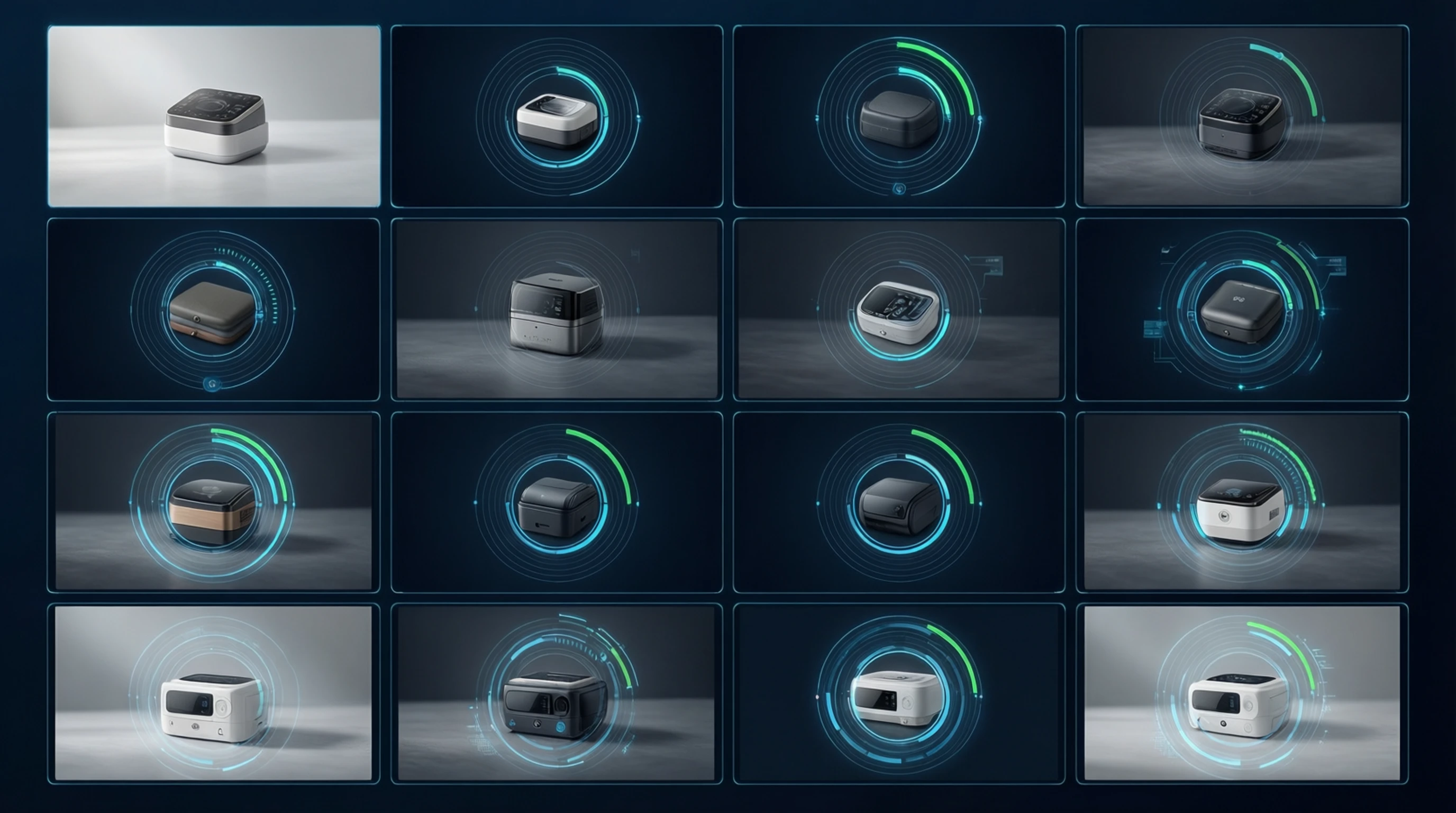
Batch Background Removal: How to Process Hundreds of Images Efficiently
Batch Background Removal: How to Process Hundreds of Images Efficiently
Processing a single product photo is straightforward. But what happens when you have 200 new SKUs to list, a seasonal catalog refresh hitting next week, or a marketplace that just updated its image requirements? Suddenly, removing backgrounds one at a time is not an option. You need batch background removal -- a systematic approach to processing large volumes of images quickly and consistently.
This guide covers everything you need to know about bulk background removal, from choosing the right method to optimizing your entire workflow for speed and quality at scale.
When You Need Batch Background Removal
Not every situation calls for bulk processing. But several common scenarios make it essential:
E-commerce Catalog Launches
When you are launching a new product line with dozens or hundreds of items, each product needs multiple angles -- front, side, back, and detail shots. A 50-product launch with four images each means 200 backgrounds to remove before you can list anything.
Seasonal Inventory Updates
Retailers refreshing their catalogs for spring, summer, holiday, or back-to-school seasons often need to reprocess existing images or shoot new ones in bulk. Timing matters because delays in image processing directly delay revenue.
Marketplace Compliance
Platforms like Amazon, eBay, and Etsy have strict image requirements. Amazon mandates a pure white background for the main product image. If your existing catalog of 500 products does not meet these standards, batch processing is the only realistic path to compliance.
Brand Consistency Projects
When a company rebrands or standardizes its visual identity, every product image across every channel may need reprocessing. This can mean thousands of images that need uniform background treatment.
New Photography Partnerships
Switching photographers or studios often means your new images have different background styles. Batch removal lets you normalize everything to a consistent standard before uploading.
Manual vs Automated Batch Processing
The difference between manual and automated batch processing is dramatic. Here is a realistic comparison based on a catalog of 200 product images:
| Factor | Manual (Photoshop) | Desktop Batch Tool | AI Online Tool | API Integration |
|---|---|---|---|---|
| Time per image | 5-15 minutes | 30-60 seconds | 2-5 seconds | 1-3 seconds |
| Total time (200 images) | 17-50 hours | 1.5-3 hours | 7-17 minutes | 3-10 minutes |
| Skill required | Expert | Intermediate | None | Developer |
| Edge quality | Variable (fatigue) | Good | Consistently high | Consistently high |
| Labor cost (at $25/hr) | $425-$1,250 | $37-$75 | $0-$20 | $0-$40 |
| Consistency | Degrades over time | Moderate | High | High |
The numbers speak for themselves. A skilled Photoshop editor might manage 8-12 images per hour with clean edges. An AI tool processes that same batch in under a minute.
The Hidden Cost of Manual Processing
Beyond the raw time calculation, manual batch processing carries additional costs:
- Editor fatigue: Quality drops noticeably after 2-3 hours of repetitive masking work
- Revision cycles: Inconsistent results require quality checks and rework
- Opportunity cost: Hours spent on background removal are hours not spent on creative work
- Scaling bottleneck: You cannot process faster without hiring more editors
Approaches to Batch Background Removal
There are four main approaches, each suited to different needs and technical capabilities.
1. API Integration
Best for: Developers, agencies, and businesses with custom workflows
An API-based approach gives you the most control. You send images programmatically and receive processed results automatically. This is ideal when background removal is part of a larger automated pipeline.
Typical workflow:
- Write a script that reads images from a folder or database
- Send each image to the background removal API endpoint
- Receive the processed image with a transparent background
- Save results to your output directory or upload directly to your platform
Advantages:
- Fully automated, no manual intervention
- Integrates with existing tools and workflows
- Handles thousands of images without supervision
- Consistent processing parameters across all images
Considerations:
- Requires development resources to set up
- Per-image API costs can add up at very high volumes
- Need error handling for failed processing attempts
2. Desktop Batch Processing Tools
Best for: Photographers and small studios with moderate volumes
Several desktop applications offer batch processing modes. You load a folder of images, configure settings, and let the tool process everything sequentially.
Popular options include:
- Adobe Photoshop Actions: Record a background removal action and apply it to a folder via File > Automate > Batch
- GIMP Batch Processing: Use Script-Fu or Python-Fu for automated processing
- Dedicated desktop tools: Purpose-built applications with batch queues
Advantages:
- Works offline with no internet dependency
- One-time software cost instead of per-image pricing
- Full control over processing parameters
Considerations:
- Processing speed limited by your hardware
- Photoshop Actions are fragile with varied image compositions
- Setup and configuration time for each batch run
3. Online Batch Tools
Best for: Small businesses, marketers, and non-technical users
Browser-based tools that accept multiple uploads and process them in sequence. You drag a folder of images onto the upload area and download the results as a ZIP file or individually.
Advantages:
- No software installation required
- No technical skills needed
- Works on any device with a browser
- Always uses the latest AI models
Considerations:
- Upload and download speeds depend on your internet connection
- Some tools limit the number of images per batch
- May require a paid plan for bulk processing features
4. Hybrid Workflow
Best for: Teams with mixed technical abilities and quality requirements
Many organizations combine approaches. For example:
- Use an API for routine product image processing
- Use an online tool for one-off marketing image needs
- Reserve manual Photoshop work for hero images that need artistic direction
This layered approach matches the right tool to each situation, optimizing both cost and quality.
How to Prepare Images for Batch Processing
Preparation is the difference between a smooth batch run and hours of troubleshooting. Follow these steps before processing.
Consistent File Naming
Adopt a naming convention before you shoot:
- Good:
product-SKU-001-front.jpg,product-SKU-001-side.jpg - Bad:
IMG_4392.jpg,Photo 1 (2).jpg,final_FINAL_v3.jpg
Consistent naming makes it easy to match processed outputs with their originals and identify which product each image belongs to.
Resolution Standards
Decide on a target resolution before batch processing:
- Amazon: Minimum 1000px on the longest side, recommended 2000px+
- Shopify: Recommended 2048x2048px
- eBay: Minimum 500px, recommended 1600px on the longest side
- General e-commerce: 1500-2500px on the longest side provides a good balance
Process all images at the same resolution for catalog consistency. Resize before batch processing if your originals vary significantly in dimensions.
File Format Selection
| Format | Best For | Notes |
|---|---|---|
| PNG | Final output with transparency | Larger files but lossless |
| WebP | Web display with transparency | Smaller files, wide browser support |
| JPEG | Input images, non-transparent output | No transparency support |
| TIFF | Archival, print workflows | Largest files, maximum quality |
For batch background removal, input as JPEG (smaller upload), output as PNG (preserves transparency).
Pre-Processing Checklist
Before starting a batch run, verify:
- All images are in the same folder with consistent naming
- Resolution meets your target platform requirements
- Images are properly exposed and color-corrected
- No corrupt or zero-byte files in the batch
- Sufficient disk space for output files (PNG outputs are typically 3-5x larger than JPEG inputs)
- A small test batch of 5-10 images has been processed successfully
Quality Control in Batch Processing
Automated processing does not mean zero oversight. Build quality control into your workflow.
Spot-Check Strategy
You do not need to inspect every image, but you should check enough to catch systematic issues:
- For batches under 50 images: Check every 5th image (20% sample)
- For batches of 50-200: Check every 10th image (10% sample)
- For batches over 200: Check every 20th image (5% sample), plus the first 5 and last 5
What to Look For
When spot-checking, examine these common problem areas:
- Edge quality around hair and fine details -- Are edges clean or are there visible halos?
- Complete subject retention -- Did the AI accidentally remove part of the product?
- Shadow handling -- Are natural shadows preserved or removed as needed?
- Color accuracy -- Has the removal process shifted any colors?
- Stray background remnants -- Are there any background pixels left around the subject?
Consistency Verification
Open several processed images side by side and check:
- Uniform edge treatment across all images
- Consistent shadow behavior
- No processing artifacts that appear in some images but not others
- Similar transparency levels around semi-transparent elements
Automated Quality Checks
For API-based workflows, you can add programmatic checks:
- Verify output file sizes are within expected ranges (unusually small files may indicate errors)
- Check that output dimensions match input dimensions
- Confirm all files in the batch have corresponding outputs
- Flag images where the transparent area is unusually large or small (may indicate failed detection)
Workflow Optimization: Shooting Photos with Batch Removal in Mind
If you know images will be batch processed, you can dramatically improve results by adjusting your photography workflow.
Lighting Recommendations
- Use even, diffused lighting to minimize harsh shadows that complicate AI detection
- Avoid mixed lighting temperatures that create color casts on edges
- Light the background separately from the subject when possible -- this increases the contrast that helps AI models distinguish foreground from background
- Consistent lighting across the session ensures uniform AI performance across all images
Background Choice for Shooting
Even though you plan to remove the background, your shooting background matters:
- Solid, contrasting colors give AI the clearest separation signals
- Light gray or white works well for most products
- Green or blue works well for subjects with light-colored edges
- Avoid backgrounds similar to your product color -- a white product on a white background is harder to separate than a white product on a gray background
Camera Settings for Batch Consistency
- Lock white balance manually instead of using auto
- Use manual exposure or exposure lock so brightness stays consistent
- Maintain consistent focus distance for uniform depth of field
- Shoot in RAW if you need maximum flexibility in post-processing before batch removal
Product Staging Tips
- Keep products clearly separated from the background with at least 2-3 inches of space
- Avoid props that touch or overlap the product unless they are part of the final image
- Position products consistently -- same angle, same distance, same orientation
- Use a turntable for multi-angle shots to maintain perfect centering
Integration with E-commerce Platforms
Batch background removal is most valuable when it feeds directly into your selling workflow.
Shopify Bulk Upload
Shopify supports bulk image uploads through several methods:
- CSV Import: Include image URLs in your product CSV file. Process images first, host them (S3, Cloudflare, etc.), then reference the URLs.
- Shopify Admin: Drag and drop up to 20 images at a time per product. For bulk operations, use the CSV method.
- Shopify API: Programmatically attach images to products. Combine this with a background removal API for a fully automated pipeline.
Optimal Shopify image specs: 2048x2048px, PNG or JPEG, under 20MB per file.
Amazon Seller Central
Amazon has the strictest image requirements of any major marketplace:
- Main image: Pure white background (RGB 255, 255, 255), product fills 85% of frame
- Minimum resolution: 1000px on the longest side
- Preferred resolution: 2000px+ for zoom functionality
- Format: JPEG, PNG, TIFF, or GIF
Bulk upload process: Use Amazon's Flat File templates to upload product data and image URLs simultaneously. Process backgrounds first, host images, then reference them in your flat file.
WooCommerce
WooCommerce offers flexible image handling:
- Built-in media library: Upload processed images and assign them to products
- CSV Import: Similar to Shopify, include image URLs in your import file
- WP-CLI: For developers, use command-line tools to bulk-assign images to products
- Plugins: Several plugins automate image import from external sources
General Marketplace Tips
Regardless of platform:
- Process images before uploading rather than trying to fix them after
- Keep original and processed versions -- never overwrite your originals
- Name files to match product SKUs for easy mapping during import
- Test with a small batch first to verify the platform accepts your image specifications
Cost Analysis: Pricing Models Compared
Understanding pricing helps you choose the most cost-effective approach for your volume.
| Pricing Model | Cost Range | Best For | Watch Out For |
|---|---|---|---|
| Free tier | $0 (limited images) | Testing, occasional use | Daily or monthly limits |
| Per-image | $0.05-$0.50 per image | Low-to-medium volume | Costs scale linearly |
| Monthly subscription | $10-$50/month | Regular medium volume | Unused credits may expire |
| Unlimited plan | $50-$200/month | High volume, agencies | May throttle speed at scale |
| Enterprise API | Custom pricing | Very high volume | Minimum commitments |
Cost Calculation Examples
Small e-commerce store (50 images/month):
- Per-image at $0.10: $5/month
- Free tier: $0 (most free tools cover 50 images)
- Recommendation: Use a free tool
Medium store (500 images/month):
- Per-image at $0.10: $50/month
- Subscription plan: $20-$40/month
- Recommendation: Subscription plan saves 20-60%
Agency or large catalog (5,000 images/month):
- Per-image at $0.10: $500/month
- Unlimited plan: $100-$200/month
- Enterprise API: $200-$400/month with volume discount
- Recommendation: Unlimited or enterprise plan
The True Cost of "Free"
Free tools are genuinely useful but understand their limitations:
- Processing limits: Most free tools cap at 5-25 images per day
- Resolution limits: Some free tiers downscale output images
- Speed limits: Free tier often means slower processing during peak times
- Feature limits: Batch processing itself may be a paid feature
For occasional use, free tools are the clear choice. For business-critical batch processing, a paid plan typically pays for itself in time savings within the first batch.
Processing Speed Benchmarks
Speed matters when you are working against a launch deadline. Here are realistic benchmarks for different methods:
| Method | Images per Minute | 100 Images | 1,000 Images |
|---|---|---|---|
| Manual (Photoshop expert) | 4-12 per hour | 8-25 hours | 83-250 hours |
| Photoshop Actions | 1-2 | 50-100 min | 8-17 hours |
| Desktop AI tool | 2-4 | 25-50 min | 4-8 hours |
| Online AI tool | 12-20 | 5-8 min | 50-83 min |
| API (parallel processing) | 30-60+ | 2-3 min | 17-33 min |
Key insight: API-based processing with parallel requests is the fastest approach by a large margin. Sending 10 concurrent requests to an AI API can process 60+ images per minute. For truly massive batches (10,000+ images), this is the only practical approach.
Factors That Affect Speed
- Image size: Larger files take longer to upload, process, and download
- Internet bandwidth: Online tools are bottlenecked by your upload speed
- Image complexity: Images with intricate edges (hair, foliage, lace) take slightly longer
- Server load: Cloud-based tools may slow down during peak usage hours
- Parallel processing: APIs that support concurrent requests scale dramatically faster
Tips for Maintaining Quality at Scale
Processing hundreds or thousands of images introduces challenges that do not exist at small scale. Follow these practices to keep quality high.
1. Categorize Before Processing
Group your images by type before batch processing:
- Simple products (solid objects, clean edges): Process together with standard settings
- Complex products (hair, fur, transparent materials): May need different processing or manual review
- Lifestyle images (products in context): Decide whether to remove or keep environmental elements
2. Process in Manageable Batches
Even with automation, avoid processing everything in one massive run:
- Break large jobs into batches of 50-100 images
- Review results after each batch before proceeding
- Adjust settings if you notice recurring issues
- This limits the blast radius of any systematic problems
3. Maintain an Error Log
Track which images fail or produce poor results:
- Note the image filename and the specific issue
- Look for patterns (are all failures from the same shooting session? Same product type?)
- Use this data to improve your photography or pre-processing workflow
4. Version Your Outputs
Never overwrite original files. Use a clear folder structure:
/product-images/
  /originals/           -- Untouched camera files
  /processed/           -- Background-removed versions
  /reviewed/            -- QC-approved final images
  /rejected/            -- Images needing manual attention
5. Document Your Process
Write down your batch processing workflow so anyone on your team can reproduce it:
- Which tool and settings you use
- Your quality check procedure
- How to handle failures
- Naming and folder conventions
- Platform upload steps
This documentation becomes invaluable when training new team members or scaling your operation.
6. Schedule Processing During Off-Peak Hours
If you are using cloud-based tools, processing during off-peak hours (early morning, weekends) often yields faster speeds and more consistent results due to lower server load.
Frequently Asked Questions
How many images can I batch process at once?
This depends on the tool you use. Online tools typically handle 10-50 images per batch upload. API integrations can process thousands of images in a single automated run. Desktop tools are limited mainly by your computer's processing power and available memory. For very large catalogs, an API-based approach with parallel processing is the most efficient method.
Will batch processing produce the same quality as processing one image at a time?
Yes. AI-based background removal applies the same model and processing to every image regardless of whether it is processed individually or as part of a batch. The AI does not cut corners on image number 200 the way a human editor might. Each image receives full analysis and edge refinement.
What happens if some images in my batch fail to process correctly?
Most batch tools will flag failed images and continue processing the rest. You should always implement a review step to catch failures. Common failure causes include corrupt files, extremely low resolution, or images where the subject and background have nearly identical colors. Failed images can usually be reprocessed individually with adjustments.
Can I batch remove backgrounds and replace them with a specific color or image?
Many tools support batch replacement as well as removal. You can process all images to transparent backgrounds first, then use a second batch step to composite them onto your desired background color or image. For e-commerce, white (#FFFFFF) is the most common replacement background.
Is batch background removal suitable for images with multiple subjects?
AI models handle multiple subjects with varying success. Simple multi-subject images (a pair of shoes, a set of products) usually process well. Complex scenes with many overlapping subjects may need individual attention. Test a representative sample before committing to batch processing for multi-subject images.
How do I handle images that need different cropping or positioning after background removal?
Background removal and cropping are separate steps. Process backgrounds first, then use a batch cropping or resizing tool to standardize dimensions. Many e-commerce platforms require specific aspect ratios, so plan your cropping as a second automated step after removal. Tools like ImageMagick or sharp (Node.js) can batch crop and resize programmatically.
Start Processing Your Images in Bulk
Whether you have 50 product photos or 5,000, batch background removal transforms what used to be days of tedious editing into minutes of automated processing. The key is choosing the right approach for your volume, preparing your images properly, and building quality control into your workflow.
Here is your action plan:
- Audit your current image backlog and upcoming needs
- Choose the approach that matches your volume and technical capability
- Prepare a test batch of 10-20 representative images
- Process the test batch and verify quality
- Scale up to your full catalog with confidence
Ready to see how fast AI can process your images? Try our free background removal tool and experience the speed and quality of modern AI-powered image processing. Start with a single image, then scale to your entire catalog.