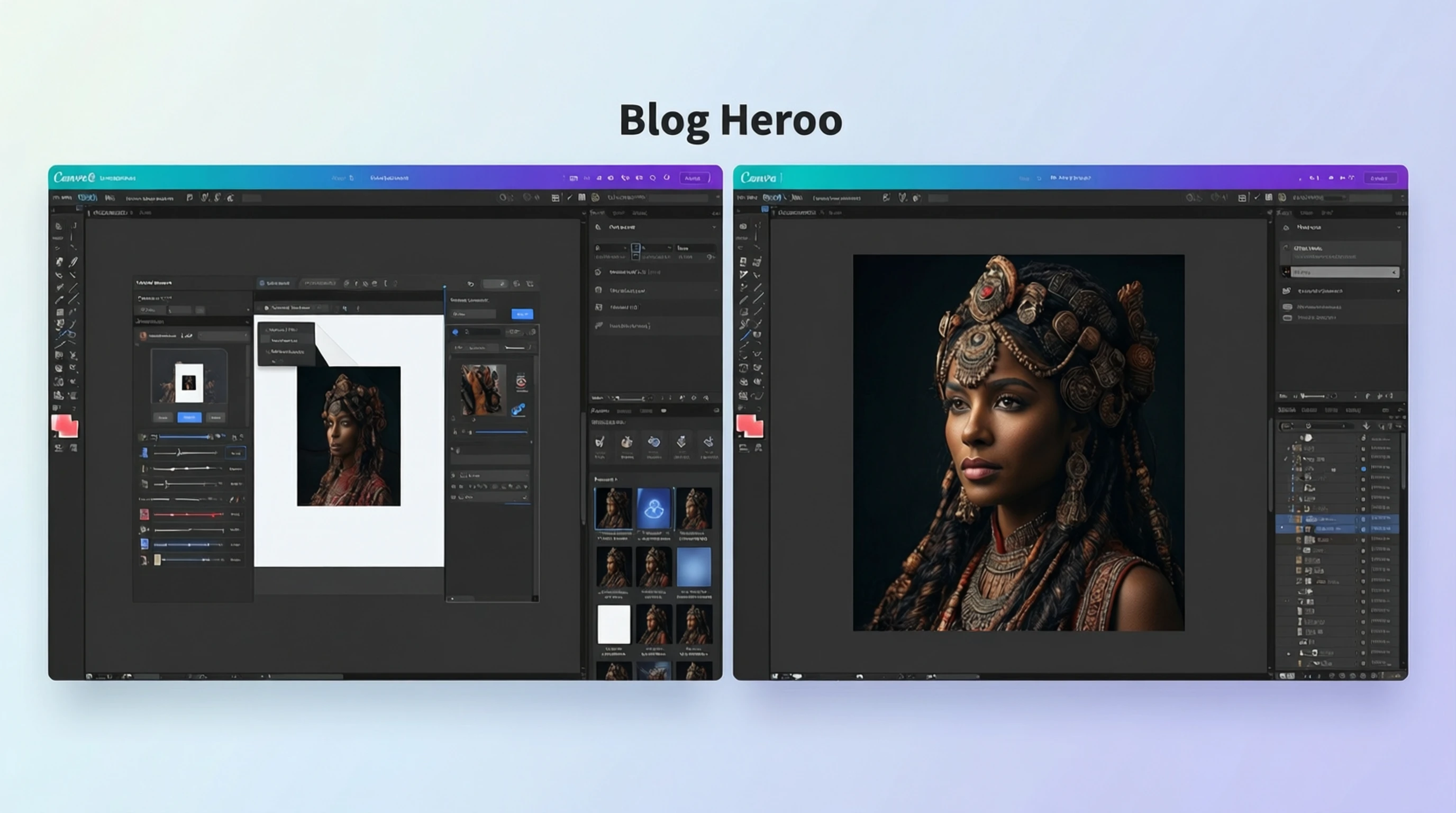
Canva Background Remover vs Dedicated AI Tools: Which Gives Better Results?
Canva Background Remover vs Dedicated AI Tools: Which Gives Better Results?
Canva has become one of the most popular design platforms in the world, and for good reason. It makes graphic design accessible to everyone, from social media managers to small business owners. Among its many features, Canva's background remover lets you strip backgrounds from images directly inside the editor. But how does it compare to dedicated AI background removal tools that are purpose-built for this single task?
In this guide, we put Canva's background remover head-to-head against dedicated AI tools to help you decide which option delivers the best results for your specific needs. We will cover quality, speed, pricing, and workflow so you can make an informed choice.
What Is Canva's Background Remover?
Canva's background remover is a built-in feature within the Canva design platform. It allows you to select any image on your canvas and remove its background with a single click. The tool uses machine learning to detect the foreground subject and make the background transparent.
How It Works
- Upload or select an image inside the Canva editor
- Click on the image, then select "Edit Image"
- Choose "BG Remover" from the effects panel
- Canva processes the image and removes the background
- You can then place the cutout subject onto any design
The integration into Canva's broader design ecosystem is its biggest strength. You can remove a background and immediately place the subject onto a template, add text, apply filters, and export your final design, all without leaving the platform.
When Canva's Background Remover Shines
Canva's tool is genuinely useful in several scenarios:
- Quick social media graphics: When you need a fast cutout for an Instagram story or Facebook post and pixel-perfect edges are not critical
- Simple subjects on clean backgrounds: Photos with high contrast between subject and background, such as a product on a white surface
- Non-technical users: People who are not comfortable with dedicated editing tools and want everything in one place
- Design-first workflows: When background removal is just one small step in a larger design project inside Canva
The Canva Pro Requirement
One important detail that catches many users off guard: Canva's background remover is not free. It is a Canva Pro feature, which costs $12.99 per month (or $119.99 per year). This means you are paying for an entire design suite just to access background removal.
If you are already a Canva Pro subscriber using the platform daily for design work, the background remover is a convenient bonus. However, if your primary need is background removal, paying $12.99 per month solely for that feature is difficult to justify when dedicated tools offer free or lower-cost alternatives with better quality.
What You Get With Canva Pro
To be fair, the Canva Pro subscription includes far more than background removal:
- Access to 100+ million premium stock photos and elements
- Brand Kit for consistent branding
- Magic Resize for multi-platform content
- Content Planner for scheduling
- 1TB of cloud storage
- Premium templates and design tools
If you use these features regularly, the background remover is a nice addition. If you do not, you are overpaying for a single capability.
Limitations of Canva's Built-In Background Remover
While Canva's background remover is convenient, it has notable limitations that become apparent when you need professional-quality results.
Edge Quality and Fine Details
The most significant limitation is edge detection accuracy. Canva's tool often struggles with:
- Hair and fur: Wispy hair strands, flyaways, and animal fur frequently get clipped or produce rough, jagged edges. This creates an unnatural "cut-and-paste" look around the head and shoulders.
- Semi-transparent elements: Veils, glass objects, smoke, and sheer fabrics are poorly handled, often being completely removed or left with visible artifacts.
- Complex boundaries: Subjects with intricate outlines such as tree branches, lace patterns, or feathered accessories tend to lose detail along the edges.
Resolution Constraints
Canva processes images within its design environment, which means:
- Output resolution is tied to your design dimensions, not your original image resolution. If your canvas is set to 1080x1080 for Instagram, your exported image will be that size regardless of the original.
- No dedicated high-resolution export for the background-removed image alone. You export the entire design, not just the cutout.
- Compression artifacts can appear in the final export, especially at lower quality settings.
Limited Manual Refinement
Canva does offer a basic brush tool to restore or erase portions of the background removal, but it is rudimentary compared to what dedicated tools provide:
- No feathering or edge smoothing controls
- No ability to adjust the detection sensitivity
- No mask preview or overlay mode
- Limited undo granularity for touch-ups
No Batch Processing
If you need to remove backgrounds from 50 product photos, Canva requires you to process each image individually inside a design. There is no batch upload, no bulk processing, and no way to automate the workflow.
No API Access
For developers and businesses that need to integrate background removal into their own applications or automated pipelines, Canva offers no API for its background removal feature. This makes it unsuitable for programmatic or high-volume workflows.
What Are Dedicated AI Background Removal Tools?
Dedicated AI background removal tools are platforms built from the ground up to do one thing exceptionally well: separate foreground subjects from their backgrounds. Because these tools focus entirely on this single task, they invest all of their engineering effort into model accuracy, edge refinement, and output quality.
How They Differ From Canva
| Aspect | Canva Background Remover | Dedicated AI Tool |
|---|---|---|
| Primary purpose | Design platform with BG removal add-on | Background removal is the core product |
| AI model focus | General-purpose, serves many features | Specialized for segmentation accuracy |
| Edge quality | Good for simple images | Excellent across all complexity levels |
| Resolution handling | Tied to canvas size | Processes at native image resolution |
| Hair and fur | Often rough or clipped | Clean, natural-looking edges |
| Output format | Part of a design export | Standalone transparent PNG |
| Batch processing | Not available | Supported on many platforms |
| API access | Not available | Available on most platforms |
| Cost for BG removal only | $12.99/month (Canva Pro) | Free to low-cost options available |
The Technology Advantage
Dedicated tools like Remove-Backgrounds.net use state-of-the-art segmentation models that are specifically trained and optimized for foreground-background separation. These models are evaluated and refined against challenging benchmark datasets that include hair, fur, transparent objects, and complex scenes.
The result is measurably better edge detection, particularly on the subjects that matter most: people, products, and detailed objects.
Quality Comparison: Scenario by Scenario
Let us break down how each tool performs across the most common real-world scenarios.
Portrait Photos and Hair
The challenge: Human hair is one of the hardest subjects for background removal. Individual strands, flyaways, curly hair, and hair against similarly-colored backgrounds all demand precise detection.
- Canva: Produces acceptable results on tightly cropped portraits with simple hairstyles. Struggles noticeably with curly or frizzy hair, often creating a halo effect or clipping strands entirely. The boundary around the head and shoulders frequently looks artificial.
- Dedicated AI tools: Excel at preserving individual hair strands and flyaways. Advanced segmentation models understand the semi-transparent nature of hair edges and produce natural-looking boundaries that blend well onto new backgrounds.
Winner: Dedicated AI tools, by a significant margin.
Product Photography
The challenge: E-commerce products need clean, precise cutouts for marketplaces like Amazon, Etsy, and Shopify. Edges must be sharp, shadows handled correctly, and the overall look must be professional.
- Canva: Handles simple products on solid backgrounds reasonably well. Runs into trouble with reflective surfaces, products with thin elements (jewelry, electronics with antennas), and items where the product color is similar to the background.
- Dedicated AI tools: Deliver clean, marketplace-ready cutouts consistently. Handle reflective and metallic surfaces, fine wires or thin elements, and complex product shapes with higher accuracy.
Winner: Dedicated AI tools for professional product photography. Canva is adequate for casual product images.
Complex Scenes and Multiple Subjects
The challenge: Group photos, images with overlapping subjects, or scenes with busy backgrounds require the AI to make difficult decisions about what constitutes the foreground.
- Canva: May struggle to identify the intended subject in busy scenes. Can remove parts of subjects or retain parts of the background, especially where colors overlap.
- Dedicated AI tools: Better at handling multi-subject scenes and busy backgrounds due to more sophisticated segmentation models that consider context and depth cues.
Winner: Dedicated AI tools.
Simple Images on Clean Backgrounds
The challenge: A single subject photographed against a solid white, green, or clearly contrasting background.
- Canva: Performs well here. The high contrast makes detection straightforward, and the results are clean and usable.
- Dedicated AI tools: Also perform well, as expected. The difference in quality is minimal for these easy cases.
Winner: Tie. Both handle simple cases effectively.
Speed Comparison
Processing speed matters, especially when you are working with multiple images.
| Metric | Canva | Dedicated AI Tool |
|---|---|---|
| Single image processing | 3-5 seconds | 2-3 seconds |
| Time to first result (including upload) | 10-15 seconds (must be inside a design) | 5-8 seconds (drag, drop, done) |
| Batch of 20 images | 15-25 minutes (one at a time, manual) | 2-5 minutes (batch upload) |
| Workflow overhead | Must create/open a design first | Upload directly, no setup needed |
For a single quick cutout, the speed difference is negligible. For volume work, dedicated tools are dramatically faster due to batch processing and streamlined interfaces.
When Canva Makes More Sense
Despite the quality differences, there are legitimate reasons to use Canva's background remover:
You Are Already Designing in Canva
If your workflow is centered around Canva and you are building a social media graphic, presentation, or marketing asset, removing the background inside Canva saves you from switching between tools. The convenience of staying in one platform has real value.
The Image Is Simple
For high-contrast images with clear subjects and no fine edge details, Canva's output is perfectly acceptable. Not every image needs pixel-perfect edge detection.
You Need Quick, Casual Results
If you are making a meme, a casual social media post, or a quick internal presentation where edge quality is not critical, Canva gets the job done fast within your existing workflow.
You Are Already Paying for Canva Pro
If you are a Canva Pro subscriber for other reasons (templates, brand kit, stock photos), the background remover is included at no additional cost. Using it for quick tasks makes practical sense.
When a Dedicated Tool Makes More Sense
You Need HD Quality Output
If you are producing images for print, large-format displays, professional portfolios, or any context where quality is scrutinized, a dedicated tool's superior edge detection and full-resolution processing make a noticeable difference.
Your Subjects Have Complex Edges
Portraits with flowing hair, pets with fur, products with fine details, or any subject where edge accuracy matters most is where dedicated tools pull far ahead.
You Process Images in Volume
E-commerce sellers uploading entire product catalogs, photographers delivering batches of edited portraits, or marketing teams processing campaign assets all benefit from batch processing capabilities that Canva does not offer.
You Need API Integration
Developers building applications, automated workflows, or SaaS products that include background removal as a feature need API access. Dedicated tools typically provide RESTful APIs. Canva does not expose its background remover through an API.
You Want Free Background Removal
If background removal is your primary need and you do not require Canva's broader design features, paying $12.99 per month is unnecessary when dedicated tools offer free tiers with better quality.
The Best of Both Worlds: Using AI Tools and Canva Together
Here is a workflow that many professionals adopt to get the best results:
Step 1: Remove the Background With a Dedicated AI Tool
Upload your image to a dedicated background removal tool like Remove-Backgrounds.net. The specialized AI model produces a clean, high-quality cutout with natural-looking edges, even on hair, fur, and complex subjects. Download the transparent PNG.
Step 2: Import the Cutout Into Canva
Upload the already-processed transparent PNG into Canva. Now you have a perfectly extracted subject ready to place onto any template, background, or design.
Step 3: Design in Canva
Use Canva's excellent design tools to build your final graphic. Add text, shapes, additional images, brand elements, and export in your desired format.
This approach gives you the best edge quality from a dedicated AI tool combined with the best design capabilities from Canva. It adds only a few seconds to your workflow and the quality improvement is immediately visible.
Cost Comparison
| Option | Monthly Cost | Background Removal Quality | Includes Design Tools | Batch Processing | API Access |
|---|---|---|---|---|---|
| Canva Free | $0 | Not available | Yes (limited) | No | No |
| Canva Pro | $12.99 | Good (simple images) | Yes (full suite) | No | No |
| Remove-Backgrounds.net (Free) | $0 | Excellent (all image types) | No | Limited | No |
| Remove-Backgrounds.net + Canva Free | $0 | Excellent + basic design tools | Yes (limited) | Limited | No |
| Remove-Backgrounds.net + Canva Pro | $12.99 | Best quality + full design suite | Yes (full suite) | Limited | No |
The most cost-effective approach for most users is to use a free dedicated AI tool for background removal and Canva Free for design. You get excellent cutout quality and solid design tools at zero cost.
Making the Right Choice for Your Workflow
The decision between Canva's background remover and a dedicated AI tool comes down to your priorities:
Choose Canva's background remover if:
- You are already a Canva Pro subscriber
- Your images have simple, high-contrast backgrounds
- Edge quality is not a primary concern
- You want everything in a single platform
- You are making casual, quick graphics
Choose a dedicated AI tool if:
- You need the highest quality edge detection
- Your subjects include hair, fur, or fine details
- You process images in bulk
- You need full-resolution output
- You want to avoid paying $12.99/month for background removal alone
- You need API access for automation
Use both together if:
- You want professional-grade cutouts in Canva designs
- You are doing client work where quality matters
- You process product photography for e-commerce
Frequently Asked Questions
Is Canva's background remover free?
No. The background remover is a Canva Pro feature that requires a paid subscription at $12.99 per month or $119.99 per year. It is not available on the free Canva plan.
Can I use Canva's background remover without Canva Pro?
You cannot. Background removal is locked behind the Pro paywall. If you need free background removal, dedicated AI tools like Remove-Backgrounds.net offer it at no cost with no account required.
Which tool is better for removing backgrounds from hair?
Dedicated AI background removal tools consistently outperform Canva on hair and fur. Purpose-built segmentation models are specifically trained to handle the semi-transparent, fine-detail nature of hair strands, producing more natural-looking results.
Can I use a dedicated tool and then import into Canva?
Absolutely. This is the recommended workflow for professional results. Remove the background using a dedicated AI tool, download the transparent PNG, and upload it into Canva for your design work. You get the best of both worlds.
Is Canva's background remover good enough for e-commerce?
For simple product photos on clean backgrounds, Canva can produce acceptable results. However, for professional e-commerce catalogs, marketplace listings, or products with fine details, a dedicated AI tool delivers noticeably better quality that meets professional standards.
How does the processing speed compare?
Both tools process single images in a few seconds. The main speed difference appears in volume work: dedicated tools with batch processing capabilities handle multiple images far faster than processing them one by one inside Canva designs.
Try Professional Background Removal for Free
Want to see the quality difference for yourself? Upload an image to Remove-Backgrounds.net and compare the result with Canva's background remover. Our AI-powered tool uses the advanced AI segmentation model to deliver clean, HD-quality cutouts with precise edge detection on even the most challenging subjects.
No account required. No subscription needed. Just upload and see the difference.