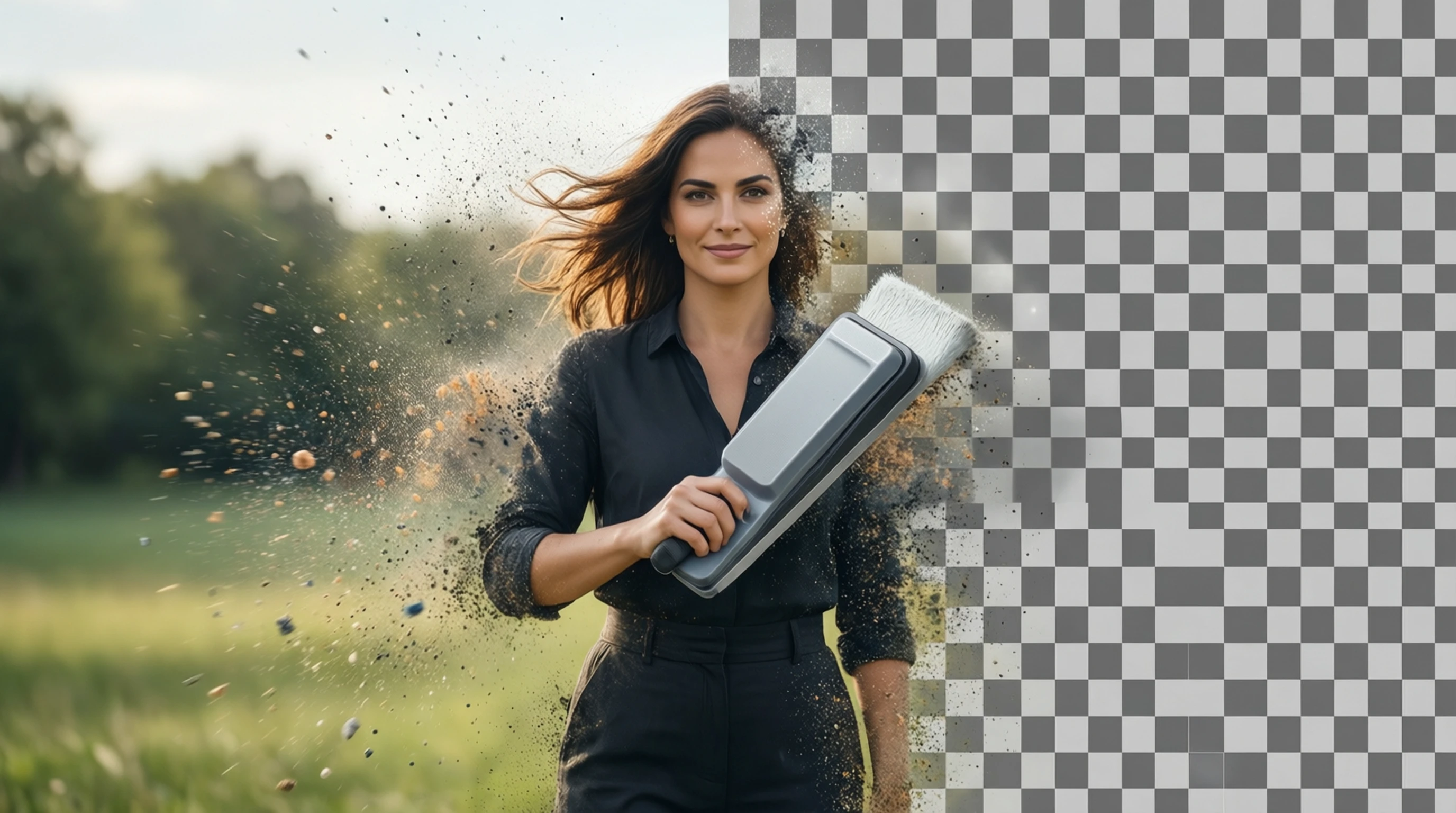
How to Erase Background from Any Image Online for Free
How to Erase Background from Any Image Online for Free
Need to erase background from a photo quickly? Whether you are cleaning up a product shot, creating a profile picture, or designing graphics for social media, removing the background is one of the most common image editing tasks. The good news is that you no longer need expensive software or advanced skills to do it.
This guide walks you through how to erase background in photo files using free AI-powered tools that deliver professional results in seconds.
Why People Need to Erase Backgrounds from Photos
Background removal is useful in dozens of everyday situations:
- E-commerce listings: Clean white backgrounds that meet marketplace requirements for Amazon, Etsy, and Shopify.
- Social media content: Eye-catching posts and stories with custom or transparent backgrounds.
- Professional headshots: Replacing messy office backgrounds with a clean, neutral look.
- Graphic design: Isolating subjects for flyers, presentations, thumbnails, and collages.
- Personal projects: Scrapbooks, custom phone cases, stickers, and more.
Whatever your reason, the ability to edit out background elements from an image opens up creative possibilities that would otherwise require hiring a designer.
How AI Background Erasers Work
Modern background erasers use deep learning models trained on millions of images. These AI models analyze every pixel in your photo to determine what is the foreground subject and what is the background.
The process works like this:
- Upload your image to the tool.
- The AI model runs semantic segmentation, identifying the subject (person, product, animal, object) and separating it from everything behind it.
- The background pixels are removed, leaving you with a transparent PNG or a new solid-color background.
- Download the result.
The entire process takes just a few seconds. No manual selection, no tracing around edges, and no Photoshop expertise required.
What Makes AI Erasers Better Than Manual Methods
Traditional background removal in Photoshop or GIMP involves tools like the Magic Wand, Pen Tool, or Select and Mask. These require:
- 10 to 30 minutes per image for clean results.
- Skill and practice to handle complex edges like hair, fur, or translucent objects.
- Expensive software licenses (Photoshop costs $22.99/month).
AI tools handle all of this automatically. They are especially good at:
- Hair and fur edges — the hardest part of manual background removal.
- Semi-transparent objects like glass, veils, and smoke.
- Complex scenes with multiple overlapping elements.
Step-by-Step: How to Erase Background Online for Free
Step 1: Choose a Free AI Tool
Visit Remove-Backgrounds.net — a free, no-signup background eraser that processes images entirely in your browser for maximum privacy.
Step 2: Upload Your Image
Click the upload area or drag and drop your photo. The tool accepts JPG, PNG, and WebP files up to 50 MB. Your image is automatically resized to 1024x1024 for optimal AI processing.
Step 3: Wait for AI Processing
The AI model analyzes your image and generates a precise mask in 2 to 5 seconds. You will see a real-time preview of the result.
Step 4: Review and Download
Check the result. The background should be cleanly erased with sharp edges around your subject. Download the result as a transparent PNG for maximum flexibility, or choose a solid background color.
That is it. Four steps, under 10 seconds, completely free.
Best Practices for Clean Background Erasure
While AI tools are remarkably capable, the quality of your input image affects the output. Follow these tips for the best results:
Lighting
- Even, diffused lighting produces the best results. Avoid harsh shadows that merge the subject with the background.
- Natural window light or a softbox works well.
- Avoid backlighting where the subject appears as a silhouette.
Contrast
- The more contrast between the subject and the background, the cleaner the erasure.
- A dark-haired person against a dark wall is harder to separate than against a light background.
- For product photos, use a contrasting surface (white product on dark backdrop, or vice versa).
Image Quality
- Higher resolution images produce better results because the AI has more pixel data to work with.
- Avoid blurry or heavily compressed images — JPEG artifacts can confuse the AI at edges.
- Shoot in good light to minimize noise and grain.
Subject Positioning
- Keep the subject fully within the frame with some padding around the edges.
- Avoid subjects that are cropped by the image border — the AI cannot guess what is outside the frame.
- Center the subject for even processing.
Common Use Cases for Background Erasure
Erase Background for E-commerce
Online marketplaces like Amazon require pure white backgrounds for main product images. Instead of setting up a professional light box, simply photograph your product on any clean surface and erase the background with AI. The result is a clean, marketplace-compliant image in seconds.
Erase Background in Portrait Photos
Need a professional headshot but your background is a messy living room? Erase the background and replace it with a neutral gray, white, or blurred gradient. This is perfect for LinkedIn profiles, company directories, and ID photos.
Erase Background for Social Media
Create scroll-stopping social media content by erasing backgrounds and placing subjects on bold, colorful, or branded backgrounds. This technique is used by influencers, marketers, and content creators to make their posts stand out in crowded feeds.
Erase Background for Graphic Design
Designers frequently need to isolate elements for compositions. Erasing the background from product shots, portraits, or objects lets you layer them into posters, banners, presentations, and digital art without the tedious manual cutout process.
Erase Background vs Remove Background: Is There a Difference?
You might see both terms used interchangeably online. Functionally, erase background and remove background mean the same thing: eliminating the background pixels from an image to isolate the subject. Some users prefer "erase" because it suggests a cleaner, more complete removal — like using an eraser on paper.
Similarly, edit out background is another way people describe the same process. Regardless of which phrase you use, the result is the same: a subject isolated from its surroundings, ready for any new background or transparent export.
Frequently Asked Questions
Can I erase the background from any image?
Yes. AI background erasers work on virtually any image: people, animals, products, vehicles, buildings, food, and more. The best results come from images with clear subjects and reasonable contrast with the background.
Is there a limit on how many backgrounds I can erase for free?
On Remove-Backgrounds.net, you can erase backgrounds from multiple images per day without creating an account. There are no watermarks on the output.
Will erasing the background reduce my image quality?
No. The AI processes your image at its uploaded resolution. The subject area retains all original detail and sharpness. The output is a full-quality transparent PNG.
Can I erase the background on my phone?
Yes. Remove-Backgrounds.net works in any mobile browser. Simply visit the site, upload a photo from your camera roll, and download the result. No app installation needed.
What if the AI misses part of the background?
Occasionally, the AI may leave small background remnants in complex areas. For most images, the result is clean on the first try. If needed, you can touch up the edges in any basic image editor.
Start Erasing Backgrounds for Free
Ready to erase background from your photos? Try Remove-Backgrounds.net — upload your image, get a clean cutout in seconds, and download for free. No signup, no watermark, no limits on creativity.
Whether you need to erase background in photo files for work, school, or personal projects, AI makes it fast, free, and effortless.