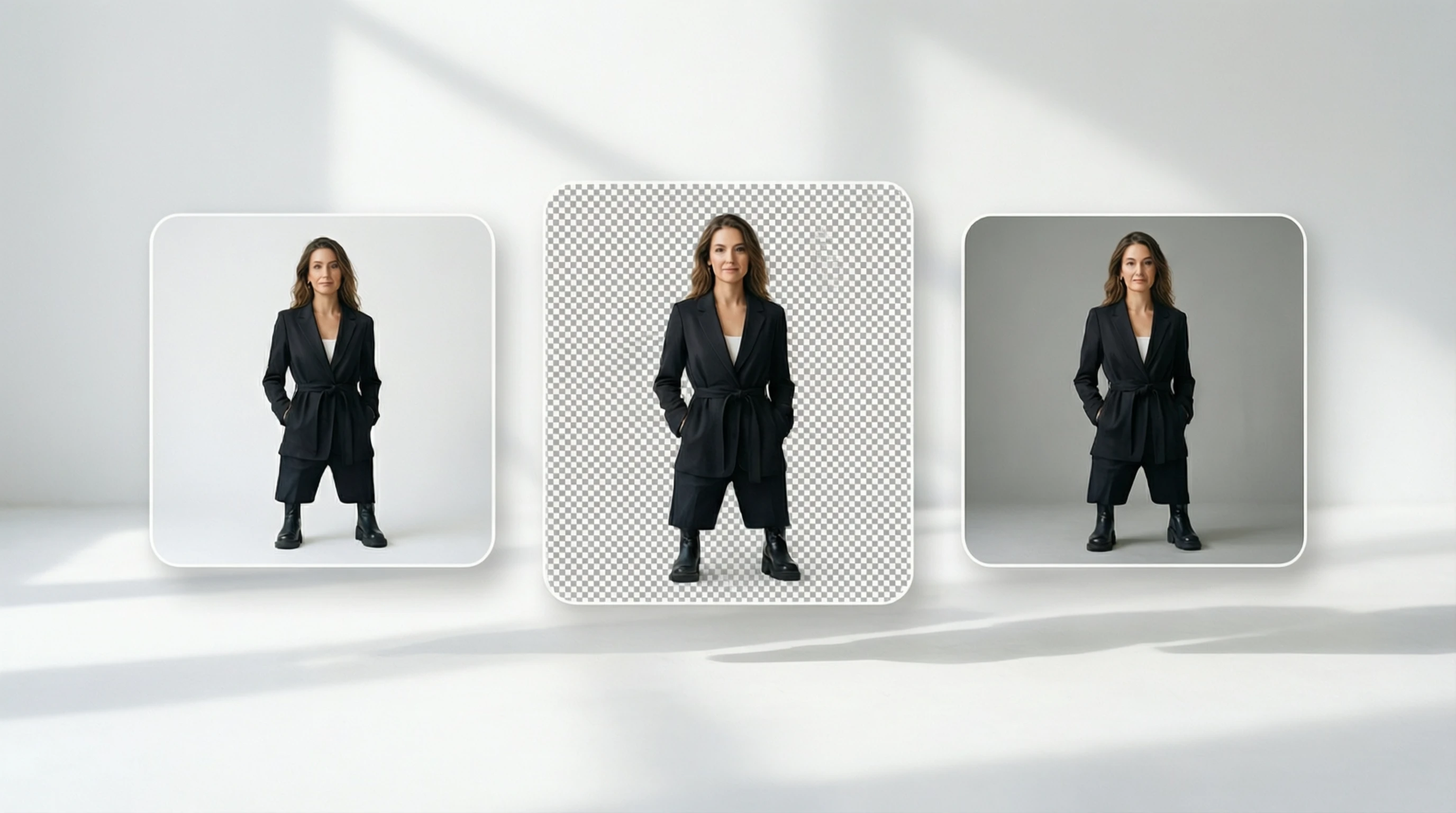
JPEG vs PNG vs WebP: Which Image Format to Use After Removing a Background
JPEG vs PNG vs WebP: Which Image Format to Use After Removing a Background
You have just removed the background from your image. The subject looks clean, the edges are crisp, and you are ready to save. But which image format should you choose? The answer depends on whether you need transparency, how small the file needs to be, where the image will be displayed, and who will view it.
Picking the wrong format can strip away the transparent background you worked to create, introduce compression artifacts around delicate edges, or produce a file so large it slows down your website. This guide breaks down every major image format available in 2026, compares them side by side, and gives concrete recommendations for every common use case.
Why Format Choice Matters After Background Removal
Background removal produces an image with an alpha channel -- a per-pixel transparency map that tells software which areas are visible and which are see-through. Not every image format can store that alpha channel. If you save your cutout as a JPEG, for example, the transparency is gone and the background fills in with a solid color (usually white or black).
Even among formats that do support transparency, the differences are significant:
- Compression type (lossy vs. lossless) affects edge quality
- Color depth determines how many shades of transparency are possible
- File size impacts page load speed and storage costs
- Browser and software support determines who can actually view your image correctly
Understanding these trade-offs lets you make an informed decision every single time.
PNG: The Gold Standard for Transparency
Portable Network Graphics (PNG) has been the default choice for transparent images since the late 1990s, and for good reason.
How PNG Handles Transparency
PNG supports a full 8-bit alpha channel, which means each pixel can have 256 levels of transparency. This enables smooth, anti-aliased edges that blend naturally with any background color. Hair, fur, glass, smoke, and other semi-transparent subjects are preserved with high fidelity.
Pros of PNG
- Full alpha channel transparency with 256 levels per pixel
- Lossless compression -- no quality degradation on save
- Universal support across every browser, operating system, and design tool
- Wide color depth -- up to 48-bit true color
- Predictable results -- what you see is what you get
Cons of PNG
- Larger file sizes compared to lossy formats, especially for photographic content
- No native animation support (APNG exists but has limited adoption)
- Overkill for photos that do not need transparency
When to Use PNG
Choose PNG when you need a transparent background and maximum compatibility. It is the safest choice for logos, product cutouts, graphic overlays, and any image that will be used across multiple platforms or imported into design software like Photoshop, Figma, or Canva.
JPEG: No Transparency, But the Smallest Photos
JPEG (Joint Photographic Experts Group) is the most widely used image format on the web, but it was never designed for transparency.
Why JPEG Cannot Store Transparency
JPEG does not include an alpha channel. When you save a background-removed image as JPEG, the transparent pixels are replaced with a solid color, typically white. There is no workaround -- this is a fundamental limitation of the format.
When JPEG Still Makes Sense After Background Removal
Despite the lack of transparency, JPEG is sometimes the right choice after you have composited your cutout onto a new background:
- Final compositions -- When your transparent subject has been placed on a new solid or photographic background and no transparency is needed in the final output
- Social media uploads -- Platforms like Instagram and Facebook often convert uploaded images to JPEG anyway, so saving as JPEG gives you control over the compression level
- Email attachments -- Smaller file sizes mean faster delivery and fewer bounce-backs
- Photographs with complex textures -- JPEG compression excels at encoding smooth gradients and natural textures at very small file sizes
Pros of JPEG
- Smallest file sizes for photographic content
- Adjustable quality slider lets you balance size vs. clarity
- Universal support everywhere
Cons of JPEG
- No transparency support at all
- Lossy compression -- quality degrades each time you re-save
- Compression artifacts visible around sharp edges and text
WebP: Modern Transparency With Superior Compression
WebP, developed by Google, combines the best traits of PNG and JPEG into a single format. As of 2026, it has effectively achieved universal browser support.
How WebP Handles Transparency
WebP supports a full alpha channel, just like PNG. The key difference is that WebP can compress both the color data and the alpha channel using lossy or lossless algorithms, resulting in dramatically smaller files.
Browser Support in 2026
WebP is now supported by every major browser:
- Chrome, Edge, Opera, Brave -- supported since 2014
- Firefox -- supported since version 65 (2019)
- Safari -- supported since version 14 (2020) on macOS Big Sur and iOS 14
- Samsung Internet, UC Browser -- full support
In practical terms, over 97% of web users can view WebP images natively. The rare exceptions are users on very outdated browsers or specialized embedded systems.
Pros of WebP
- Full alpha channel transparency
- 25-35% smaller than equivalent PNG files with lossless compression
- Up to 80% smaller than PNG when using lossy compression with acceptable quality
- Both lossy and lossless modes available
- Animation support as an alternative to GIF
- Near-universal browser support in 2026
Cons of WebP
- Limited support in print workflows -- many print shops and design tools still expect PNG or TIFF
- Not universally accepted by all CMS platforms and email clients
- Lossy mode can introduce artifacts around transparent edges if quality is set too low
- Metadata handling varies across tools
When to Use WebP
WebP is the best choice for web-first images where you need transparency and care about page load speed. Use it for product images on your online store, hero graphics, and any web content where file size matters.
GIF: Limited Transparency for Simple Graphics
GIF (Graphics Interchange Format) has been around since 1987 and is best known for animations. It does support transparency, but with severe limitations.
How GIF Handles Transparency
GIF supports only binary transparency -- each pixel is either fully opaque or fully transparent, with nothing in between. There is no alpha channel. This means:
- Edges appear jagged and aliased against non-matching backgrounds
- Semi-transparent effects like glass, shadows, and hair fringes are impossible
- You must choose a single matte color for edge anti-aliasing
The 256-Color Limitation
GIF is limited to a palette of 256 colors per frame. Photographic content suffers from visible banding and dithering. This makes GIF unsuitable for product photos, portraits, or any image with subtle color gradients.
When GIF Works for Transparency
- Simple icons and logos with flat colors and few distinct hues
- Animated overlays where the animation matters more than edge quality
- Legacy system compatibility where no other transparent format is supported
In most cases, PNG or WebP is a better choice than GIF for transparent static images.
SVG: Vector-Based Transparency for Logos and Icons
SVG (Scalable Vector Graphics) is fundamentally different from the raster formats above. Instead of pixels, SVG stores shapes as mathematical instructions.
How SVG Handles Transparency
SVG elements can have opacity values ranging from 0 to 1, and the background of an SVG file is transparent by default. Because the format is resolution-independent, SVG images look perfectly sharp at any size.
Limitations for Background Removal
SVG is not suitable for photographs. Background removal tools produce raster (pixel-based) output, and converting a photograph to SVG results in either a bloated file or a heavily simplified, posterized image. SVG is the right choice only when your source material is already a vector graphic.
When to Use SVG
- Logos and brand marks that need to scale from favicon to billboard
- Icons and UI elements on the web
- Illustrations and diagrams with clean geometric shapes
- Any graphic that must render crisply at arbitrary resolutions
AVIF and Newer Formats
AVIF (AV1 Image File Format) is the newest mainstream image format, based on the AV1 video codec. It represents the cutting edge of image compression in 2026.
AVIF Capabilities
- Full alpha channel transparency with excellent compression
- Up to 50% smaller than WebP at equivalent visual quality
- 10-bit and 12-bit color depth for HDR content
- Both lossy and lossless compression
- Wide color gamut (BT.2020) support
Browser Support for AVIF in 2026
- Chrome, Edge, Opera -- supported since version 85 (2020)
- Firefox -- supported since version 93 (2021)
- Safari -- supported since version 16.4 (2023) on macOS Ventura and iOS 16.4
- Overall coverage -- approximately 93-95% of web users
When to Use AVIF
AVIF is an excellent choice when you are targeting modern web audiences and want the smallest possible file sizes with transparency. It outperforms WebP in compression efficiency, but its slightly lower browser support means you should provide a PNG or WebP fallback for maximum compatibility.
Other Emerging Formats
- JPEG XL -- Offers lossless JPEG recompression and progressive decoding, but browser adoption has stalled as of 2026 with Chrome and Edge having removed support
- HEIF/HEIC -- Common on Apple devices, supports transparency, but has limited web browser support and licensing complexities
Detailed Format Comparison Table
| Feature | PNG | JPEG | WebP | GIF | SVG | AVIF |
|---|---|---|---|---|---|---|
| Transparency | Full alpha | None | Full alpha | Binary only | Native (vector) | Full alpha |
| Compression | Lossless | Lossy | Both | Lossless | N/A (vector) | Both |
| Color Depth | Up to 48-bit | 24-bit | 24-bit + alpha | 8-bit (256 colors) | Unlimited | Up to 12-bit HDR |
| Typical File Size | Large | Small | Medium-small | Small (simple) | Tiny (vector) | Smallest |
| Quality Loss on Save | None | Yes | Optional | None | None | Optional |
| Animation | Limited (APNG) | No | Yes | Yes | Yes (SMIL/CSS) | Yes |
| Browser Support | 100% | 100% | 97%+ | 100% | 100% | 93-95% |
| Print Workflow Support | Excellent | Excellent | Poor | Poor | Excellent | Poor |
| Best For | Universal transparency | Final composites | Web transparency | Simple animations | Logos and icons | Next-gen web |
Use Case Recommendations
Different projects demand different formats. Here is a breakdown by common scenario.
E-Commerce Product Photos
Primary format: WebP with PNG fallback
E-commerce sites need transparent product images that load fast. WebP delivers the best balance of transparency support and file size for web display. Always keep a master PNG for design flexibility.
- Use WebP for your website product galleries and category pages
- Use PNG as your archive master and for marketplace uploads (Amazon, eBay)
- Use JPEG only for final composite images on a styled background
Web Design and UI Elements
Primary format: SVG for icons, WebP or AVIF for photos
- SVG for icons, logos, and illustrations that must scale responsively
- WebP for photographic elements with transparency, such as hero images and team photos
- AVIF for maximum compression when serving modern browsers, with WebP or PNG as fallback
- PNG when email or legacy CMS compatibility is a concern
Print and Physical Media
Primary format: PNG or TIFF
Print workflows typically do not support WebP or AVIF. Use formats that preserve full quality.
- PNG for digital print workflows and design tool imports
- TIFF (not covered in detail here, but relevant) for professional print production with CMYK color space
- SVG for logos and vector-based designs destined for large-format printing
Social Media
Primary format: PNG for upload, platform converts as needed
Social media platforms apply their own compression, so upload the highest quality source you have.
- Upload PNG for images where transparency matters (Instagram stories, stickers)
- Upload JPEG or PNG for standard feed posts (transparency is not preserved on most feeds)
- Use WebP if the platform accepts it and you want to reduce upload time
Presentations and Documents
Primary format: PNG
Presentation software like PowerPoint, Keynote, and Google Slides handles PNG transparency reliably.
- PNG is the safest bet for all presentation software
- SVG works in Google Slides and newer PowerPoint versions for vector graphics
- Avoid WebP and AVIF as presentation software support varies
How to Convert Between Formats Without Losing Quality
Converting a background-removed image from one format to another requires care to preserve the alpha channel and minimize quality loss.
Lossless Conversions (No Quality Loss)
These conversions preserve every pixel exactly:
- PNG to WebP (lossless mode) -- Reduces file size with no quality penalty
- PNG to AVIF (lossless mode) -- Even smaller files, same quality
- WebP (lossless) to PNG -- Restores universal compatibility
Conversions That Involve Quality Trade-Offs
- PNG to WebP (lossy mode) -- Significant size reduction, but introduces minor compression artifacts. Use quality 85-95 for imperceptible loss.
- PNG to AVIF (lossy mode) -- Best compression ratio, but very low quality settings can smear fine transparency edges
- PNG to JPEG -- Transparency is permanently lost. The alpha channel is flattened against a solid color.
Recommended Conversion Tools
- Squoosh (squoosh.app) -- Browser-based, supports all modern formats, lets you preview quality differences side by side
- ImageMagick -- Command-line tool for batch conversions:
convert input.png -quality 90 output.webp - FFmpeg -- Supports AVIF encoding:
ffmpeg -i input.png -c:v libaom-av1 output.avif - Sharp (Node.js) -- Programmatic conversion for build pipelines
- Adobe Photoshop / GIMP -- Manual conversion with full control over export settings
Batch Conversion Tip
When converting a large library of product images, always keep your original PNG files as masters. Generate WebP and AVIF variants from those masters. If you ever need to reconvert at different quality settings, you can go back to the lossless source.
Optimization Tips for Web Performance
Serving the right format is only half the battle. How you deliver images to visitors matters just as much.
Use Responsive Images With the Picture Element
The HTML <picture> element lets you serve different formats and sizes to different devices:
<picture>
  <source srcset="product.avif" type="image/avif">
  <source srcset="product.webp" type="image/webp">
  <img src="product.png" alt="Product on transparent background"
       loading="lazy" width="800" height="600">
</picture>
This approach serves AVIF to browsers that support it, falls back to WebP, and ultimately falls back to PNG. Every visitor gets the smallest file their browser can handle.
Implement Lazy Loading
Images below the fold should use native lazy loading to avoid blocking the initial page render:
- Add
loading="lazy"to any<img>tag that is not immediately visible - Keep above-the-fold hero images as eager (default) loading
- Combine lazy loading with proper
widthandheightattributes to prevent layout shift
Specify Image Dimensions
Always include explicit width and height attributes on your image tags. This allows the browser to reserve the correct space before the image loads, preventing Cumulative Layout Shift (CLS) -- a Core Web Vitals metric that affects your search ranking.
Compress Before Uploading
Run your images through an optimizer before deploying:
- PNG: Use tools like OptiPNG, PNGQuant, or TinyPNG to reduce size by 30-70% without visible quality loss
- WebP: Experiment with quality settings between 75 and 90 for the best size-to-quality ratio
- AVIF: Quality settings between 50 and 70 often look excellent at very small file sizes
Use a CDN With Automatic Format Negotiation
Content delivery networks like Cloudflare, Imgix, and Cloudinary can automatically detect the visitor's browser and serve the optimal format. You upload a single PNG master, and the CDN generates and caches WebP and AVIF variants on the fly. This eliminates the need to manually create multiple format versions.
Set Proper Cache Headers
Transparent images used across multiple pages (logos, icons, UI elements) should have long cache lifetimes:
- Set
Cache-Control: public, max-age=31536000, immutablefor versioned assets - Use content hashing in filenames (e.g.,
logo.a1b2c3.webp) to enable cache busting on updates
Frequently Asked Questions
Can I save a transparent image as JPEG?
No. JPEG does not support transparency. If you save a background-removed image as JPEG, the transparent areas will be filled with a solid color (usually white). To preserve transparency, save as PNG, WebP, or AVIF.
Which format gives the smallest file size with transparency?
AVIF produces the smallest transparent images, followed by WebP (lossy). For example, a typical product photo cutout might be 1.2 MB as PNG, 400 KB as WebP, and 250 KB as AVIF. If browser support is a concern, WebP offers the best balance of compression and compatibility.
Is WebP safe to use for all websites in 2026?
Yes. WebP support exceeds 97% of global web users. The only users who cannot view WebP are on extremely outdated browsers. For maximum safety, use the <picture> element to provide a PNG fallback.
Why do the edges of my cutout look jagged in GIF format?
GIF supports only binary transparency (fully transparent or fully opaque), with no partial transparency. This means the smooth, anti-aliased edges produced by background removal tools are converted to hard, staircase-like edges. Use PNG or WebP instead for smooth edge transparency.
Should I use AVIF instead of WebP?
If your audience primarily uses modern browsers (Chrome, Firefox, Safari 16.4+), AVIF delivers smaller files at equal or better quality. However, if you need broad compatibility including older Safari versions, older Android browsers, or email clients, WebP is the safer choice. The ideal approach is to serve both using the <picture> element.
What format should I use for transparent images in Canva or PowerPoint?
Use PNG. Both Canva and PowerPoint (as well as Keynote and Google Slides) have excellent PNG transparency support. WebP and AVIF support in presentation and design tools is inconsistent, so PNG remains the reliable choice for these workflows.
Start Creating Transparent Images in the Right Format
Now that you understand the strengths and limitations of every major image format, you can make the right choice every time. The decision often comes down to a simple flow:
- Need transparency? If no, JPEG is fine. If yes, continue.
- For the web? Use WebP (or AVIF with fallback) for the best balance of quality and speed.
- For print or design software? Use PNG for universal compatibility.
- For logos and icons? Use SVG if vector source is available, otherwise PNG.
- Need the absolute smallest file? Use AVIF with a WebP or PNG fallback.
Whatever format you choose, it all starts with a clean background removal. Our AI-powered tool removes backgrounds in seconds, giving you a high-quality transparent image ready to export in any format you need.
Remove Your Background for Free -->
Upload your image now and download your result as a transparent PNG, ready to convert to any format for any project.