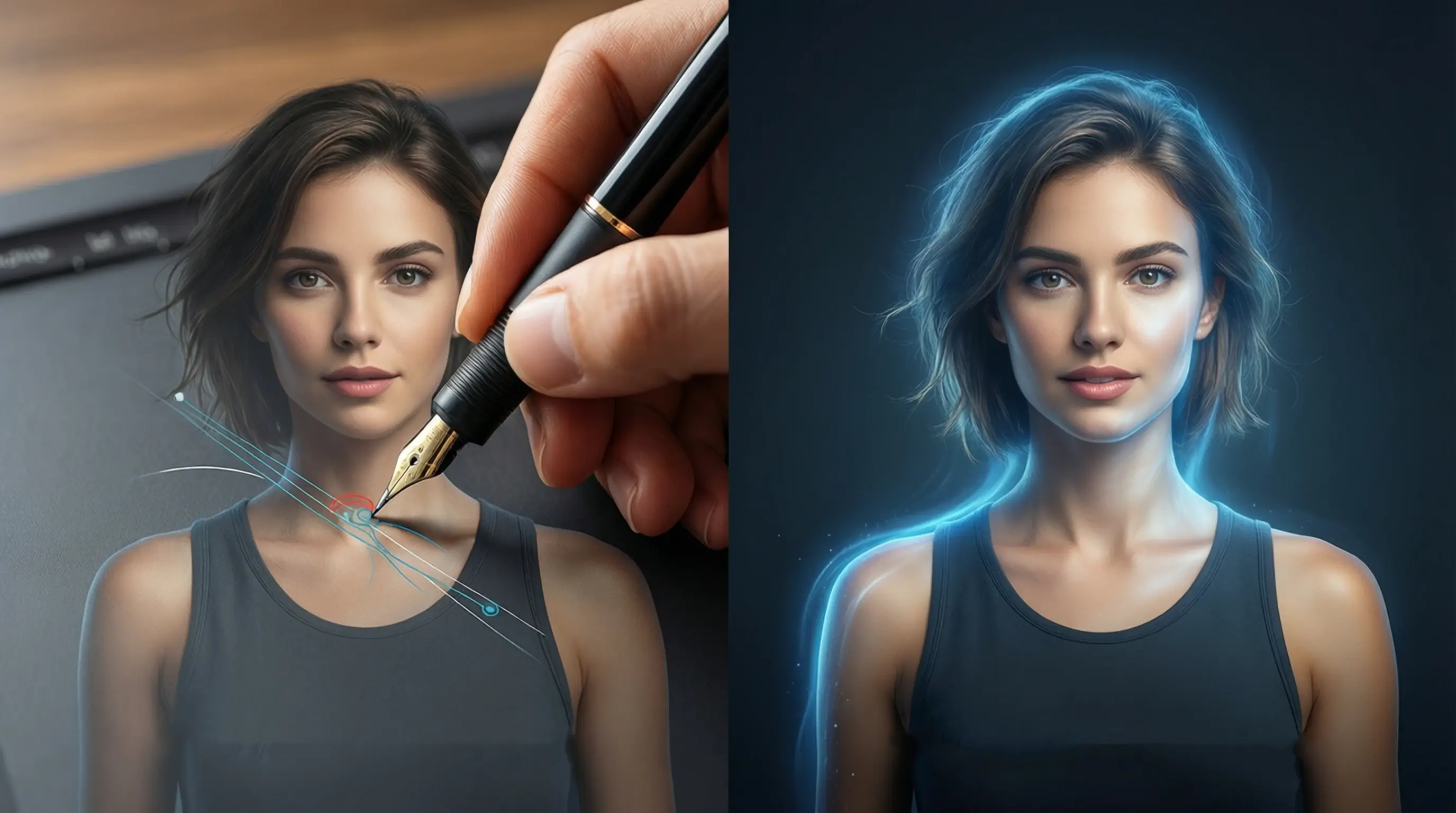
Photoshop vs AI Background Removal: Speed, Quality and Cost Compared
Photoshop vs AI Background Removal: Speed, Quality and Cost Compared
Background removal is one of the most common image editing tasks, whether you are preparing product photos for an e-commerce store, designing social media graphics, or building a professional portfolio. For decades, Adobe Photoshop has been the undisputed tool for this job. But in recent years, AI-powered background removal tools have matured to the point where they deliver professional-grade results in a fraction of the time.
So which approach is right for you? This guide provides a thorough, fair comparison of Photoshop and AI background removal across every dimension that matters: speed, quality, cost, learning curve, and workflow fit. We will acknowledge where Photoshop still reigns supreme and show exactly where AI tools offer a decisive advantage.
Photoshop Background Removal Methods: A Complete Overview
Photoshop offers multiple ways to separate a subject from its background. Each method has its strengths, and experienced editors often combine several techniques on a single image.
Quick Selection Tool
The Quick Selection Tool lets you paint over an area, and Photoshop expands the selection based on color and texture similarity. It works well on images with clear contrast between the subject and background, but it struggles with low-contrast edges and fine details like hair.
- Best for: Simple subjects on solid or contrasting backgrounds
- Typical time: 2 to 10 minutes per image
- Skill level: Beginner to intermediate
Magic Wand Tool
The Magic Wand selects contiguous pixels of a similar color with a single click. By adjusting the tolerance setting, you control how strict or loose the color matching is. It is fast but imprecise, and it rarely produces clean edges on complex images without significant manual cleanup.
- Best for: Solid-color backgrounds (e.g., white studio shots)
- Typical time: 1 to 5 minutes per image
- Skill level: Beginner
Pen Tool
The Pen Tool creates vector-based paths by placing anchor points along the edge of a subject. It produces the cleanest, most precise selections possible in Photoshop, but it is painstakingly slow and demands a high level of skill.
- Best for: Hard-edged subjects (products, furniture, architecture)
- Typical time: 10 to 60+ minutes per image
- Skill level: Advanced
Select and Mask (Refine Edge)
The Select and Mask workspace, formerly known as Refine Edge, is designed specifically for difficult edges like hair, fur, and semi-transparent materials. After making an initial selection with any tool, you enter this workspace to refine the boundary using edge detection sliders, brush tools, and output options.
- Best for: Portraits, animals, and anything with fine edge detail
- Typical time: 5 to 20 minutes per image (after initial selection)
- Skill level: Intermediate to advanced
Channel-Based Extraction
For images where the subject and background differ strongly in one color channel, experienced editors use Channels to create high-contrast masks. This technique involves duplicating a channel, increasing its contrast with Levels or Curves, and converting it into a selection. It is powerful but requires a deep understanding of how color channels work.
- Best for: Hair on light backgrounds, smoke, glass, transparent objects
- Typical time: 10 to 30 minutes per image
- Skill level: Advanced
Adobe's Built-In AI: Select Subject and Remove Background
Adobe has added its own AI-powered features to Photoshop. Select Subject uses Adobe Sensei to automatically detect and select the primary subject in a single click. Remove Background, available from the Properties panel, goes one step further by creating a layer mask that hides everything except the detected subject.
These features have improved significantly since their introduction. On straightforward images, they produce good initial selections that may only need minor refinement. However, they still operate within the Photoshop environment, which means you need an active subscription, the application installed on your computer, and familiarity with the interface to make corrections when the AI does not get it right.
How AI Background Removal Tools Work
Dedicated AI background removal tools like remove-backgrounds.net use deep learning models trained on millions of images to perform semantic segmentation. The AI classifies every pixel in an image as either foreground or background, generating a precise mask that cleanly separates the subject.
Modern AI models go beyond simple classification. They use multi-scale analysis that examines the image at multiple resolutions simultaneously, capturing both fine details and broad context. This allows them to handle complex edges, hair, fur, semi-transparent objects, and intricate patterns with remarkable accuracy.
The entire process is automatic. You upload an image, the AI processes it in seconds, and you download the result with a transparent background. No manual selection, no parameter tuning, no cleanup.
Speed Comparison: How Long Does Each Approach Take?
Speed is often the deciding factor, especially for anyone processing more than a handful of images. Here is a realistic comparison of processing times.
Per-Image Processing Time
| Method | Simple Background | Moderate Complexity | Complex (Hair/Fur) |
|---|---|---|---|
| Magic Wand | 1-3 min | 5-10 min | Not recommended |
| Quick Selection | 2-5 min | 5-15 min | 10-20 min |
| Pen Tool | 10-20 min | 20-40 min | 30-60+ min |
| Select and Mask | 3-8 min | 8-15 min | 10-25 min |
| Channels | 5-15 min | 10-20 min | 15-30 min |
| Photoshop Select Subject | 1-3 min | 2-5 min | 3-8 min (with cleanup) |
| AI Tool (remove-backgrounds.net) | 2-5 sec | 2-5 sec | 2-5 sec |
Batch Processing: Where AI Dominates
The speed difference becomes dramatic at scale. Consider processing 100 product images:
| Approach | Time for 100 Images | Notes |
|---|---|---|
| Photoshop (manual) | 8-40 hours | Depends on complexity and method |
| Photoshop Actions (batch) | 3-10 hours | Limited to repeatable steps, requires setup |
| Photoshop Select Subject (batch) | 2-5 hours | Still needs manual review and correction |
| AI background removal | 5-15 minutes | Fully automated, consistent results |
For e-commerce sellers, social media managers, or anyone handling high volumes, the time savings from AI tools translate directly into cost savings and faster turnaround.
Quality Comparison: When Does Each Approach Excel?
Quality is nuanced. The best tool depends heavily on the type of image you are working with.
Simple Backgrounds (Solid Colors, Studio Shots)
Both Photoshop and AI tools handle these well. AI tools produce clean, professional results instantly. Photoshop can achieve identical or marginally better results, but the time investment is not justified for straightforward cases.
Winner: AI tools (equal quality, massively faster)
Complex Subjects on Busy Backgrounds
When a subject blends into a complex background with similar colors or textures, AI models trained on diverse datasets often outperform quick Photoshop selections. The Pen Tool can still produce superior results here, but at a significant time cost.
Winner: Tie (AI for speed, Pen Tool for pixel-perfect precision)
Hair and Fur
Hair and fur have long been the ultimate test for background removal. Photoshop's Select and Mask workspace, combined with channel techniques, gives experienced editors fine-grained control over every strand. Advanced AI models have closed the gap significantly and now handle most hair scenarios impressively well, but the most challenging cases, such as wispy hair against a similarly colored background, may still benefit from manual refinement.
Winner: Photoshop for maximum control on difficult cases; AI for 90% of real-world hair scenarios
Transparency and Semi-Transparent Objects
Glass, veils, smoke, and other semi-transparent materials remain challenging for every approach. Photoshop's channel-based techniques and manual masking give the most precise results. AI tools continue to improve in this area but may struggle with highly transparent or reflective subjects.
Winner: Photoshop (manual channel and masking techniques)
Consistency Across Large Sets
When you need uniform quality across hundreds or thousands of images, AI tools have a clear advantage. Human editors inevitably vary in speed and attention as fatigue sets in. AI delivers the same quality on image 500 as it does on image 1.
Winner: AI tools (no fatigue, no variation)
Detailed Quality Comparison Table
| Scenario | Photoshop (Manual) | Photoshop (Select Subject) | AI Tool |
|---|---|---|---|
| Solid background | Excellent | Excellent | Excellent |
| Busy background | Excellent (slow) | Good | Very Good |
| Portrait with hair | Excellent (slow) | Good-Very Good | Very Good |
| Fine fur detail | Excellent (slow) | Good | Good-Very Good |
| Transparent objects | Very Good | Fair-Good | Fair-Good |
| Product on white | Excellent | Excellent | Excellent |
| Multiple subjects | Excellent (slow) | Good | Good-Very Good |
| Batch consistency | Variable | Good | Excellent |
Learning Curve: How Long Until You Are Productive?
Photoshop
Photoshop is a professional tool with a steep learning curve. Here is a realistic timeline for background removal proficiency:
- Basic selections (Magic Wand, Quick Selection): 1-2 weeks of practice
- Select and Mask refinement: 2-4 weeks to become comfortable
- Pen Tool mastery: 1-3 months of regular practice
- Channel-based extraction: 2-6 months to use confidently
- Professional-grade compositing: 6-12+ months
To make Photoshop a productive part of your workflow, expect to invest significant time learning not just the selection tools, but also layers, masks, blending modes, color correction, and file management.
AI Background Removal
AI tools require virtually no learning curve:
- First successful result: Under 1 minute
- Comfortable with the workflow: 5-10 minutes
- Handling all common scenarios: Same session
You upload an image, wait a few seconds, and download the result. If the output needs adjustment, you can refine it in any image editor of your choice.
Cost Comparison: What Are You Really Paying?
Adobe Photoshop
- Photography Plan (Photoshop + Lightroom + 20GB storage): $22.99/month ($275.88/year)
- All Apps Plan (entire Creative Cloud): $59.99/month ($719.88/year)
- Annual commitment required for the lowest price; cancellation fees apply
- Hardware requirements: Modern computer with 8GB+ RAM, dedicated GPU recommended
- Additional costs: Training courses, stock images, plugins
AI Background Removal Tools
- remove-backgrounds.net: Free tier available with generous monthly allowance
- Premium plans: Typically $5-15/month for high-volume usage
- No software installation required
- Works on any device with a web browser
- No hardware requirements beyond an internet connection
Cost Comparison Table
| Factor | Photoshop | AI Tool (remove-backgrounds.net) |
|---|---|---|
| Monthly cost | $22.99+ | Free / $5-15 |
| Annual cost | $275.88+ | Free / $60-180 |
| Software installation | Required | None (browser-based) |
| Hardware needs | Modern PC/Mac | Any device |
| Training investment | Significant | Minimal |
| Per-image cost at 100 images/month | ~$0.23 per image (subscription) | Free or ~$0.05-0.15 per image |
For someone who uses Photoshop exclusively for background removal, the cost difference is substantial. If you already pay for Creative Cloud for other tasks, the marginal cost of using Photoshop for background removal is effectively zero, but the time cost remains.
When Photoshop Wins
Despite the advances in AI, Photoshop remains the better choice in several important scenarios:
Complex Compositing and Creative Work
If you are creating a composite image, such as placing a subject into a new environment with matched lighting, shadows, reflections, and color grading, Photoshop is indispensable. Background removal is only the first step in a compositing workflow, and Photoshop provides all the tools needed for the subsequent stages.
Fine Manual Control Over Every Pixel
Some projects demand absolute precision. Advertising campaigns, magazine covers, and high-end product catalogs may require manual attention to every edge pixel. Photoshop gives you that level of control with tools like the Pen Tool, brush-based masking, and non-destructive layer masks.
Professional Retouching Workflows
Background removal is often one step in a larger retouching workflow. When the same image also needs skin retouching, color correction, object removal, or other edits, having everything in one application is more efficient than switching between tools.
Semi-Transparent and Highly Reflective Subjects
Glass bottles, crystal objects, sheer fabrics, and other semi-transparent materials still benefit from the manual precision that Photoshop's channel-based masking and blending options provide.
Non-Standard Output Requirements
Photoshop supports complex output options: clipping paths for print production, alpha channels for video compositing, multi-layer PSD files for design handoffs, and precise color space management for prepress workflows.
When AI Background Removal Wins
AI tools are the clear choice in many common scenarios:
Speed and Efficiency at Any Volume
Whether you need one image or one thousand, AI delivers results in seconds per image. There is no tool switching, no parameter adjustment, and no manual cleanup in the vast majority of cases.
No Skills Required
AI background removal is accessible to everyone. A small business owner listing products on Etsy, a real estate agent preparing listing photos, or a student working on a school project can all achieve professional results without any training.
E-Commerce Product Photography
Online sellers need consistent, clean product images at scale. AI tools process entire product catalogs with uniform quality, meeting marketplace requirements for white or transparent backgrounds.
Social Media Content Creation
Social media moves fast. When you need to remove a background from a photo for a story, post, or ad, AI tools let you go from idea to finished asset in under a minute.
Consistent Results Across Teams
When multiple people contribute images to a project, AI tools eliminate the variability that comes from different skill levels and editing styles. Every image gets the same treatment.
Mobile and On-the-Go Editing
AI tools run in a web browser, which means you can remove backgrounds from a phone, tablet, or any computer without installing software. This flexibility is invaluable for teams and remote workers.
The Hybrid Workflow: Getting the Best of Both Worlds
Many professional designers and photographers use a hybrid workflow that combines the speed of AI with the precision of Photoshop. This approach is increasingly common in production environments.
Step 1: AI for the Initial Cut
Upload your image to an AI tool like remove-backgrounds.net for the initial background removal. In seconds, you have a clean cutout that handles 80-95% of the edge detail correctly.
Step 2: Import Into Photoshop for Refinement
Open the AI-processed image in Photoshop. Use the layer mask that the transparent PNG effectively provides as your starting point. Zoom into problem areas and refine edges using the Brush tool on the mask.
Step 3: Complete the Composite
With the refined cutout, proceed with your compositing, color grading, shadow creation, and any other creative work in Photoshop.
Why the Hybrid Approach Works
- Saves 50-80% of the time compared to doing everything manually in Photoshop
- Reduces fatigue by eliminating the tedious initial selection work
- Maintains quality by allowing manual refinement where it matters
- Scales better because the AI handles the bulk of the work
This workflow is especially effective for portrait photographers processing wedding or event galleries, where hundreds of images need cutouts but a subset requires extra attention for print-quality delivery.
Who Should Use Which Tool?
Different users have different needs. Here is a practical guide based on common use cases.
Hobbyists and Casual Users
Recommended: AI background removal
You want fast results without learning complex software. AI tools let you remove backgrounds instantly for personal projects, social media, and creative experiments. There is no reason to invest in a Photoshop subscription or spend weeks learning the software for occasional background removal.
E-Commerce Sellers and Small Business Owners
Recommended: AI background removal
Consistency, speed, and cost-effectiveness matter most. You need clean product images that meet marketplace standards, and you need them fast. AI tools process entire product catalogs in minutes, not days. The cost savings compared to a Photoshop subscription (or hiring an editor) are significant.
Social Media Managers and Content Creators
Recommended: AI background removal (with optional Photoshop for advanced graphics)
Your workflow demands speed. AI tools integrate seamlessly into a fast-paced content creation pipeline. If you also create complex graphics, Photoshop or a similar design tool may complement your AI workflow.
Professional Photographers
Recommended: Hybrid workflow (AI + Photoshop)
You need both volume processing and precision. Use AI for initial cutouts on large batches (events, portraits, headshots), and refine in Photoshop when clients need print-quality results. This combination maximizes your throughput while maintaining the quality standards your clients expect.
Graphic Designers and Art Directors
Recommended: Photoshop as primary, AI as time-saver
Your work demands precise control over compositing, color, and layout. Photoshop is your primary environment, but AI tools can accelerate the tedious initial masking step. Use AI for the rough cut, then bring the result into Photoshop for pixel-perfect refinement.
Marketing Teams and Agencies
Recommended: AI background removal for volume, Photoshop for hero assets
Most marketing assets (social ads, email banners, web graphics) do not require manual precision. AI tools let your team produce these at scale. Reserve Photoshop time for hero images, campaign key visuals, and print-ready materials.
Frequently Asked Questions
Is AI background removal as good as Photoshop?
For the majority of common use cases, yes. AI tools produce results that match or exceed what most users can achieve in Photoshop, especially for product photos, portraits, and social media images. For specialized tasks like semi-transparent object extraction or high-end compositing, Photoshop still offers superior manual control.
Can AI handle hair and fur as well as Photoshop?
Modern AI models handle hair and fur remarkably well in most real-world scenarios. On straightforward portraits and pet photos, AI results are comparable to what an experienced Photoshop user achieves with Select and Mask. For extremely challenging cases, such as fine blonde hair against a light-colored background, manual Photoshop refinement may produce a slightly cleaner result.
Should I cancel my Photoshop subscription if I use AI tools?
It depends on what else you use Photoshop for. If background removal is your primary or only use case, switching to an AI tool will save you money and time. If you use Photoshop for retouching, compositing, color correction, or design work, keep your subscription and use AI tools to accelerate just the background removal step.
Do AI tools work with high-resolution images?
Yes. Tools like remove-backgrounds.net process high-resolution images and deliver HD output. The AI models work on the full image data, so you do not sacrifice detail. Some tools resize images before processing, so check the output resolution to ensure it meets your needs.
Are AI background removal results good enough for print?
For most print applications, including brochures, flyers, product packaging, and catalogs, AI results are print-ready. For premium print work (large-format posters, magazine covers, fine art reproduction), you may want to inspect edges at 100% zoom and do a quick manual check, potentially using the hybrid workflow described above.
How does Adobe's Select Subject compare to dedicated AI tools?
Adobe's Select Subject has improved significantly and is a capable feature within Photoshop. However, it is designed as a starting point for further refinement within Photoshop, not as a complete solution. Dedicated AI tools are optimized specifically for background removal and often deliver cleaner results out of the box, without requiring Photoshop expertise to fix imperfections.
Conclusion: Choose the Right Tool for the Job
The debate between Photoshop and AI background removal is not really about which tool is universally better. It is about which tool is better for your specific needs.
Choose AI background removal when you value speed, simplicity, and cost-effectiveness. When you need to process images quickly, maintain consistency across large sets, or work without specialized editing skills, AI tools are the clear winner.
Choose Photoshop when you need maximum creative control, are working on high-end compositing, or need to handle specialized edge cases like semi-transparent materials. Photoshop remains the industry standard for professional image editing for good reason.
Choose the hybrid approach when you want the best of both worlds: AI speed for the heavy lifting and Photoshop precision for the finishing touches.
Ready to see what AI background removal can do for your workflow? Try remove-backgrounds.net for free and process your first image in seconds. No account required, no software to install, and no learning curve. Upload an image and see the results for yourself.