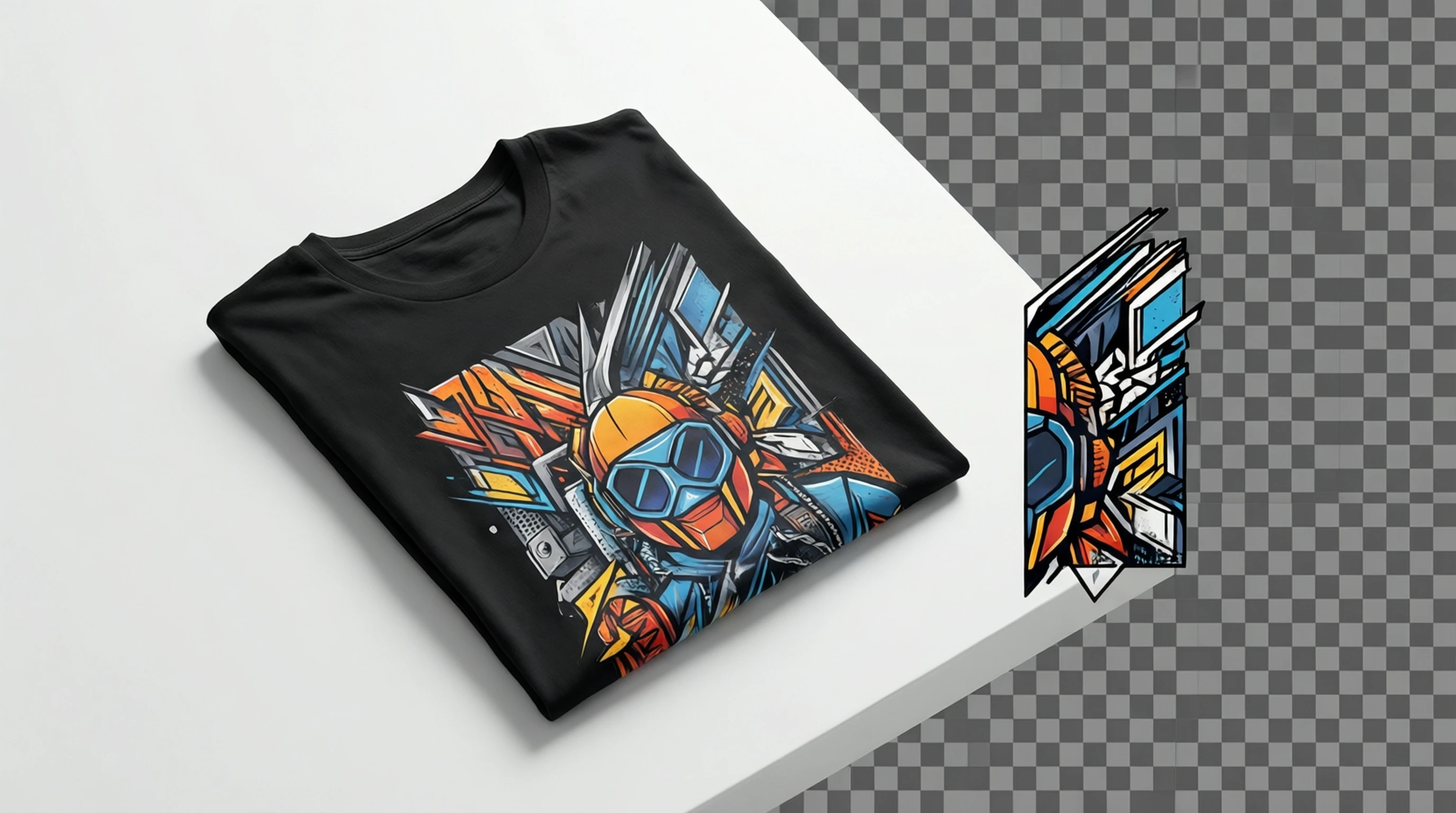
T-Shirt Design Guide: Create Print-Ready Graphics with Transparent Backgrounds
T-Shirt Design Guide: Create Print-Ready Graphics with Transparent Backgrounds
Selling custom t-shirts online has become one of the most accessible ways to build a creative business. The global custom t-shirt printing market continues to grow rapidly, driven by print-on-demand platforms that let anyone upload a design and start selling without holding inventory. But there is a critical technical step that separates amateur submissions from professional, print-ready files: preparing your design with a transparent background.
A transparent background ensures your artwork blends seamlessly onto any garment color, prints without unwanted borders or boxes, and meets the upload requirements of every major platform. This guide walks you through the entire process -- from understanding why transparency matters to exporting a file that is ready for production.
Why Transparent Backgrounds Are Essential for Print-on-Demand
When a print-on-demand service receives your design file, the printing equipment needs to know exactly which areas contain your artwork and which areas should remain blank (showing the shirt fabric underneath). A transparent background communicates this boundary with precision.
Without transparency, your design arrives with a visible rectangular block of color surrounding the artwork. On a white shirt, a white background might look acceptable in a preview, but the printer may still lay down a white ink layer beneath the design area. On colored shirts -- black, navy, heather gray -- the problem becomes immediately obvious: a harsh, opaque rectangle frames your graphic.
With transparency, only the actual design elements receive ink. The garment fabric shows through everywhere else, producing the clean, professional look that customers expect.
Here is what transparency affects in practice:
- Garment versatility -- A single transparent file works across every shirt color without modification.
- Print quality -- Printers apply ink only where needed, reducing bleed and improving edge sharpness.
- Platform compliance -- Every major print-on-demand service requires or strongly recommends transparent PNG uploads.
- Customer perception -- Products with clean, well-integrated graphics receive higher ratings and fewer returns.
Print-on-Demand Platform Requirements
Each platform has specific file requirements. Uploading a design that does not meet these specifications leads to rejection, poor print quality, or artwork that appears distorted on the final product.
| Platform | File Format | Recommended Resolution | Max File Size | Color Mode | Transparency Required |
|---|---|---|---|---|---|
| Printful | PNG | 300 DPI (min 150 DPI) | 200 MB | sRGB | Yes |
| Redbubble | PNG | 300 DPI | 300 MB | sRGB | Recommended |
| TeeSpring (Spring) | PNG | 300 DPI | 100 MB | sRGB | Yes |
| Merch by Amazon | PNG | 300 DPI | 25 MB | sRGB | Required |
| Zazzle | PNG or JPEG | 150+ DPI | 25 MB | sRGB or CMYK | Recommended |
| Society6 | PNG | 300 DPI | 150 MB | sRGB | Recommended |
Key Takeaways from the Table
- PNG is the universal format. Every platform accepts PNG, and most require it for transparency support.
- 300 DPI is the standard. While some platforms accept lower resolutions, 300 DPI ensures sharp output across all print methods.
- sRGB is the safe color mode. Although CMYK is traditional for print, most POD platforms handle color conversion internally and expect sRGB uploads.
- Transparency is either required or strongly recommended on every major platform.
Design File Specifications in Detail
Getting the technical specifications right before you begin designing saves hours of rework later. Here are the three specifications you need to lock in from the start.
Resolution: Why 300 DPI Matters
DPI (dots per inch) determines how much detail your image contains relative to its physical print size. At 300 DPI, a design that prints at 12 by 16 inches needs a pixel dimension of 3600 by 4800 pixels.
- Below 150 DPI: Visible pixelation, blurry edges, and unprofessional output. Most platforms will flag or reject these files.
- 150-299 DPI: Acceptable on some platforms for smaller print areas, but fine details and text may appear soft.
- 300 DPI: The industry standard. Text remains crisp, gradients print smoothly, and fine lines hold their shape.
Rule of thumb: Always design at 300 DPI and at the maximum print area dimensions your target platform supports. You can always scale down, but scaling up introduces quality loss.
Color Mode: sRGB vs CMYK
This is a common source of confusion for new designers.
sRGB (standard Red Green Blue) is the color space used by screens, cameras, and web browsers. It is also what print-on-demand platforms expect because their printing systems are calibrated to convert sRGB input into accurate physical output.
CMYK (Cyan Magenta Yellow Key/Black) is the traditional color model for offset printing. Some designers instinctively convert to CMYK before exporting, but this can actually cause problems with POD platforms. The platform's internal conversion from CMYK may produce different results than converting from sRGB.
Best practice: Design in sRGB. If your design tool defaults to CMYK (common in Adobe Illustrator), convert to sRGB before exporting your final PNG.
Dimensions: Standard Print Areas
Different product types have different maximum print areas. For standard t-shirts, these are the most common dimensions to design for:
- Front print area: 12 x 16 inches (3600 x 4800 px at 300 DPI)
- Back print area: 12 x 16 inches (3600 x 4800 px at 300 DPI)
- Left chest print: 4 x 4 inches (1200 x 1200 px at 300 DPI)
- Pocket area: 3.5 x 3.5 inches (1050 x 1050 px at 300 DPI)
- All-over print: Varies by platform, often 4500 x 5400 px or larger
Check your specific platform's template files. Most provide downloadable templates with safe zones and bleed areas marked.
Step-by-Step: From Concept to Print-Ready File
Follow this workflow to take any design idea from concept to a production-ready transparent PNG.
Step 1: Define Your Design Concept
Before opening any software, answer these questions:
- What is the subject or message of the design?
- Who is the target audience?
- What shirt colors will this design appear on?
- Is the design primarily typography, illustration, photography, or a combination?
- What is the intended print placement (front, back, pocket)?
Sketching rough ideas on paper or in a notes app helps you evaluate compositions quickly before investing time in production.
Step 2: Set Up Your Canvas
Open your design tool and create a new document with these settings:
- Width: 4500 pixels (for a 15-inch wide design at 300 DPI)
- Height: 5400 pixels (for an 18-inch tall design at 300 DPI)
- Resolution: 300 DPI
- Color mode: sRGB
- Background: Transparent (displayed as a checkerboard pattern in most editors)
Starting with a transparent canvas from the beginning is much easier than removing a background later.
Step 3: Create or Assemble Your Design Elements
This is where your creative process takes shape. Depending on your design type:
- Typography designs: Choose fonts carefully, convert text to outlines before exporting, and ensure readability at the intended print size.
- Illustration designs: Work with vector shapes when possible for infinite scalability.
- Photo-based designs: Start with a high-resolution source image (more on extracting elements below).
- Mixed designs: Layer text, photos, and graphic elements, keeping each on its own layer for flexibility.
Step 4: Extract Elements Using AI Background Removal
If your design incorporates photographic elements -- a portrait, an animal, a product, a landscape feature -- you need to isolate those elements from their original backgrounds. This is where AI-powered background removal transforms the workflow.
Traditional manual extraction using pen tools or magic wand selections in Photoshop can take 15 to 45 minutes per image, especially for complex subjects with hair, fur, or translucent edges. AI background removal accomplishes the same task in seconds with accuracy that matches or exceeds manual work for most subjects.
How to use AI background removal for t-shirt design elements:
- Upload your source photograph to an AI background removal tool.
- The AI model identifies the subject and generates a precise mask separating foreground from background.
- Download the result as a transparent PNG.
- Import the extracted element into your t-shirt design canvas.
- Scale, position, and integrate it with your other design elements.
This approach is especially powerful when you need to extract multiple elements from different photos and composite them into a single design.
Step 5: Review on Multiple Background Colors
Before exporting, preview your design against the shirt colors you plan to offer. Most design tools allow you to place a colored rectangle behind your artwork to simulate this.
Check for:
- Edge artifacts -- Faint halos, jagged edges, or leftover background pixels around extracted elements.
- Color readability -- Text and thin lines that are visible on white may disappear on dark garments, and vice versa.
- Transparency gaps -- Areas within the design that should be opaque but accidentally have transparency.
Step 6: Export as PNG-24 with Transparency
Export your final file with these settings:
- Format: PNG (specifically PNG-24, which supports full alpha channel transparency)
- Transparency: Enabled
- Color profile: sRGB IEC61966-2.1
- Interlacing: None (reduces file size)
Name your file descriptively: vintage-skull-typography-front-4500x5400-300dpi.png is far more useful than design-final-v3.png when you are managing dozens of designs.
Step 7: Validate Before Uploading
Open your exported PNG in a different application (not the one you designed in) to verify:
- The checkerboard transparency pattern appears where expected.
- No white or colored rectangles surround the design.
- The file dimensions and resolution match your target platform's requirements.
- The file size is within the platform's upload limits.
Design Types and Their Unique Considerations
Photo-Based Designs
Photo-based t-shirt designs transform ordinary photographs into wearable art. The key challenge is extracting the subject cleanly from its background.
Best practices for photo-based designs:
- Start with the highest resolution source photo available.
- Use AI background removal to isolate the subject, then refine edges manually if needed.
- Apply artistic effects (halftone, posterize, threshold, duotone) to bridge the gap between photographic realism and the printed medium.
- Keep in mind that fine photographic detail may not reproduce well in print. Simplify where possible.
Illustration Designs
Vector illustrations are the most print-friendly design type because they scale perfectly to any size.
- Design in vector software (Illustrator, Inkscape, Affinity Designer) whenever possible.
- Export at the required pixel dimensions and DPI for the platform.
- Ensure all strokes are expanded and text is converted to outlines before rasterizing.
Typography Designs
Text-based designs are among the best sellers in print-on-demand. Clean execution is critical because flaws in letterforms are immediately noticeable.
- Use no more than two to three fonts per design.
- Ensure adequate line spacing for readability at arm's length.
- Add subtle texture, shadows, or distressing effects to prevent the design from looking like a plain text document.
- Convert all text to outlines or rasterize before exporting to prevent font substitution issues.
Mixed / Composite Designs
Combining photos, illustrations, and text creates the most visually complex and often the most marketable designs.
- Keep each element type on its own layer group.
- Use AI background removal to extract photographic elements before compositing.
- Unify the visual style with consistent color treatment, shadow direction, and edge quality across all elements.
Color Considerations for Different Shirt Colors
The garment color beneath your design fundamentally changes how the printed result looks. Planning for this ensures your design works across your entire product lineup.
Designing for Light Garments (White, Light Gray, Cream)
- Dark inks reproduce faithfully. Your on-screen colors will closely match the printed output.
- No white ink underbase is needed. The printer applies your design colors directly onto the light fabric.
- Subtle gradients and fine details reproduce well because there is no interference from the garment color.
- Caution: Very light design elements (pale yellow, light pink) may be nearly invisible on white shirts. Ensure sufficient contrast.
Designing for Dark Garments (Black, Navy, Dark Heather)
- A white ink underbase is printed first, then your design colors are laid on top. This is necessary because colored inks are translucent and would not be visible on dark fabric without it.
- The underbase affects color accuracy. Colors may appear slightly different than on-screen due to the interaction between the white layer and the color layer.
- White elements in your design are printed with white ink, which has a slightly different texture and opacity than the fabric. This is normal.
- Keep designs bolder and simpler for dark garments. Fine lines and delicate gradients are more likely to show printing artifacts.
- Test with samples before committing to a large catalog on dark shirts.
DTG vs Screen Printing: How Transparency Affects Each Method
Understanding the two dominant printing methods helps you optimize your design files for the best possible output.
Direct-to-Garment (DTG) Printing
DTG printers work like inkjet printers for fabric. They read your PNG file pixel by pixel and spray ink directly onto the garment.
- Transparency is interpreted literally. Transparent pixels receive no ink; opaque pixels receive full ink coverage; semi-transparent pixels receive proportional ink.
- Full-color capability. DTG handles gradients, photo-realistic images, and millions of colors in a single pass.
- Best for: Complex designs, small batches, photo-based artwork, designs with many colors.
- File requirement: PNG-24 with alpha transparency.
Screen Printing
Screen printing uses physical stencils (screens) -- one per color -- to push ink onto the fabric. It is the preferred method for bulk orders because the per-unit cost drops significantly at higher quantities.
- Transparency is converted to spot colors. Each unique color in your design requires a separate screen, so designs are typically limited to 1-6 colors.
- Semi-transparency is simulated using halftone dots or eliminated entirely. Smooth gradients in your PNG may look very different when separated into screens.
- Best for: Simple, bold designs with few colors, large production runs, vintage or distressed aesthetics.
- File requirement: PNG with transparency, but ideally vector source files (AI, EPS, SVG) for clean color separations.
| Feature | DTG Printing | Screen Printing |
|---|---|---|
| Color limit | Unlimited | 1-6 colors typical |
| Gradients | Smooth reproduction | Halftone simulation |
| Photo-realistic designs | Excellent | Poor to moderate |
| Transparency handling | Pixel-perfect alpha | Converted to solid areas |
| Best batch size | 1-100 units | 50+ units |
| Cost per unit (small run) | Moderate | High |
| Cost per unit (large run) | Moderate | Low |
| Setup time | Minutes | Hours |
Regardless of the printing method, your design file should always use PNG-24 with full alpha transparency. The printer or platform handles the conversion from there.
Common File Format Requirements: PNG-24 with Transparency
Let us clarify an important technical distinction. Not all PNGs are created equal.
- PNG-8: Supports only 256 colors and binary transparency (pixels are either fully transparent or fully opaque). This creates jagged edges around complex shapes and is unsuitable for most t-shirt designs.
- PNG-24: Supports over 16 million colors and a full alpha channel with 256 levels of transparency per pixel. This enables smooth anti-aliased edges, soft shadows, and gradient transparency.
Always export as PNG-24. This is the default in most modern design applications, but it is worth verifying in your export settings. Some tools label this simply as "PNG" with a transparency checkbox enabled.
Verifying Your File Has Proper Transparency
After exporting, you can verify transparency in several ways:
- Open in a file viewer -- If you see a checkerboard pattern behind your design, transparency is intact.
- Check file properties -- The image should report an alpha channel or 32-bit color depth (8 bits each for R, G, B, and Alpha).
- Upload to a platform preview -- Most POD platforms show a garment mockup where you can visually confirm that only your design appears on the shirt.
Tips for Beginners: Start Simple, Test, and Iterate
If you are new to t-shirt design, the technical requirements can feel overwhelming. Here is a practical approach to getting started without frustration.
1. Start with a simple typography design. Text-based designs require no photography, no illustration skills, and no complex extraction work. Choose a bold font, write a compelling phrase, and export it on a transparent background.
2. Use free or affordable design tools. You do not need Adobe Creative Suite to create professional t-shirt files. Canva (free tier), GIMP (free, open source), and Photopea (free, browser-based) all support transparent PNG export at custom dimensions and DPI.
3. Order a sample before selling. Every print-on-demand platform offers sample orders at a discount. Order one shirt with your design and evaluate the color accuracy, placement, print quality, and garment feel in person.
4. Test on at least two garment colors. Print the same design on a light and a dark shirt to see how the white underbase affects the output on dark garments.
5. Keep your first catalog small. Launch with 3-5 designs, gather customer feedback, review sales data, and then expand based on what performs well.
6. Iterate based on data. Use platform analytics to see which designs get the most views, favorites, and purchases. Refine your style and subject matter based on real market response rather than assumptions.
Selling Platforms and Pricing Strategies
Once your designs are print-ready, choosing where and how to sell determines your revenue.
Platform Selection
Marketplace platforms (Redbubble, TeeSpring, Merch by Amazon) provide built-in traffic. Customers discover your designs through the platform's search and recommendation systems. The tradeoff is lower margins and less brand control.
Storefront platforms (Printful + Shopify, Printify + Etsy, Gooten + WooCommerce) give you full brand ownership and higher margins, but you are responsible for driving traffic through marketing, SEO, and social media.
Recommended approach for beginners: Start on marketplace platforms to validate your designs with real buyers and generate initial revenue. Once you identify your best sellers, expand to a branded storefront where margins are higher.
Pricing Strategy
- Research competing designs in your niche. Note the price range for similar quality and style.
- Factor in all costs: platform fees, base garment cost, printing cost, and any marketing spend.
- Target a minimum 30-40% profit margin per sale after all costs.
- Use psychological pricing (19.99 instead of 20.00).
- Offer limited-time promotions to create urgency and test price sensitivity.
Tools for the Complete Workflow
You do not need expensive software to produce professional t-shirt designs. Here is a practical toolkit organized by budget.
AI Background Removal (Element Extraction)
Use an AI background removal tool to extract photographic elements from their original backgrounds in seconds. Upload the image, let the AI generate the mask, and download the transparent result. This replaces hours of manual pen-tool work and produces clean, accurate edges.
Design Assembly Tools
Free options:
- Canva -- Browser-based, intuitive interface, supports custom dimensions and transparent PNG export. Best for typography and simple graphic designs.
- GIMP -- Free, open-source image editor with full layer support, alpha channels, and professional export options. Steeper learning curve but highly capable.
- Photopea -- Browser-based Photoshop alternative. Opens PSD files, supports layers, and exports transparent PNGs. No installation required.
Paid options:
- Adobe Illustrator -- Industry standard for vector-based designs. Ideal for logos, typography, and illustration work. Subscription pricing.
- Adobe Photoshop -- Industry standard for raster-based and photo composite designs. Essential for complex photo manipulation.
- Affinity Designer -- One-time purchase alternative to Illustrator. Full vector and raster support with professional export options.
Recommended Workflow
- Extract photographic elements using AI background removal.
- Assemble and compose your design in Canva, GIMP, or Photoshop.
- Preview on garment mockups (available free on most POD platforms).
- Export as PNG-24 with transparency at 300 DPI.
- Upload to your chosen platform and order a sample.
Frequently Asked Questions
What file format should I use for t-shirt designs?
PNG-24 with transparency is the universally accepted format across all print-on-demand platforms. It supports millions of colors and a full alpha channel for smooth, artifact-free edges. Avoid JPEG (no transparency support) and PNG-8 (limited colors and binary transparency).
What resolution should my t-shirt design be?
300 DPI at the intended print size. For a standard front print area of 12 x 16 inches, this means a file of 3600 x 4800 pixels. Some platforms accept 150 DPI as a minimum, but 300 DPI ensures the sharpest possible output.
Can I use the same design file for both light and dark shirts?
Yes, if your design uses a transparent background. The same transparent PNG works on any garment color. However, you should preview your design on both light and dark backgrounds before publishing to ensure readability and visual appeal on both. Some designs benefit from adding a thin outline or shadow to maintain visibility across garment colors.
How do I remove the background from a photo for my t-shirt design?
Upload your photo to an AI background removal tool. The AI identifies the subject and separates it from the background, producing a transparent PNG. For t-shirt design, this is far faster and often more accurate than manual selection tools, especially for subjects with complex edges like hair, fur, or foliage.
What is the difference between DTG and screen printing for my designs?
DTG (Direct-to-Garment) prints your full-color design directly onto the fabric, handling gradients and photographic detail with ease. It is ideal for complex designs and small batches. Screen printing uses physical stencils with one screen per color, making it cost-effective for large runs but limited to fewer colors. Both methods require transparent PNG files, but screen printing may also benefit from vector source files.
Do I need to convert my design to CMYK before uploading?
No. Most print-on-demand platforms expect sRGB files and handle color conversion internally. Uploading CMYK files can actually cause unexpected color shifts because the platform may apply an additional conversion. Design and export in sRGB for the most predictable results.
Start Creating Print-Ready T-Shirt Designs Today
The path from concept to a sellable t-shirt design comes down to three fundamentals: a compelling visual idea, correct technical specifications, and a transparent background that ensures clean production on any garment color.
Whether you are extracting a photo element with AI background removal, composing typography in Canva, or building a complex illustration in Illustrator, the process follows the same steps outlined in this guide. Set your canvas to 300 DPI in sRGB, design on a transparent background, export as PNG-24 with alpha transparency, and validate before uploading.
Ready to extract design elements from your photos? Try our free AI background removal tool to isolate subjects with clean, precise edges -- perfect for integrating photographic elements into your next t-shirt design.