Wedding Photo Editing: Remove Distracting Backgrounds from Your Best Shots
Wedding Photo Editing: Remove Distracting Backgrounds from Your Best Shots
Your wedding day is one of the most photographed days of your life. Hundreds, sometimes thousands, of images are captured across the ceremony, reception, portraits, and candid moments. Among those shots are genuine expressions of love, joy, and connection that deserve to be treasured forever.
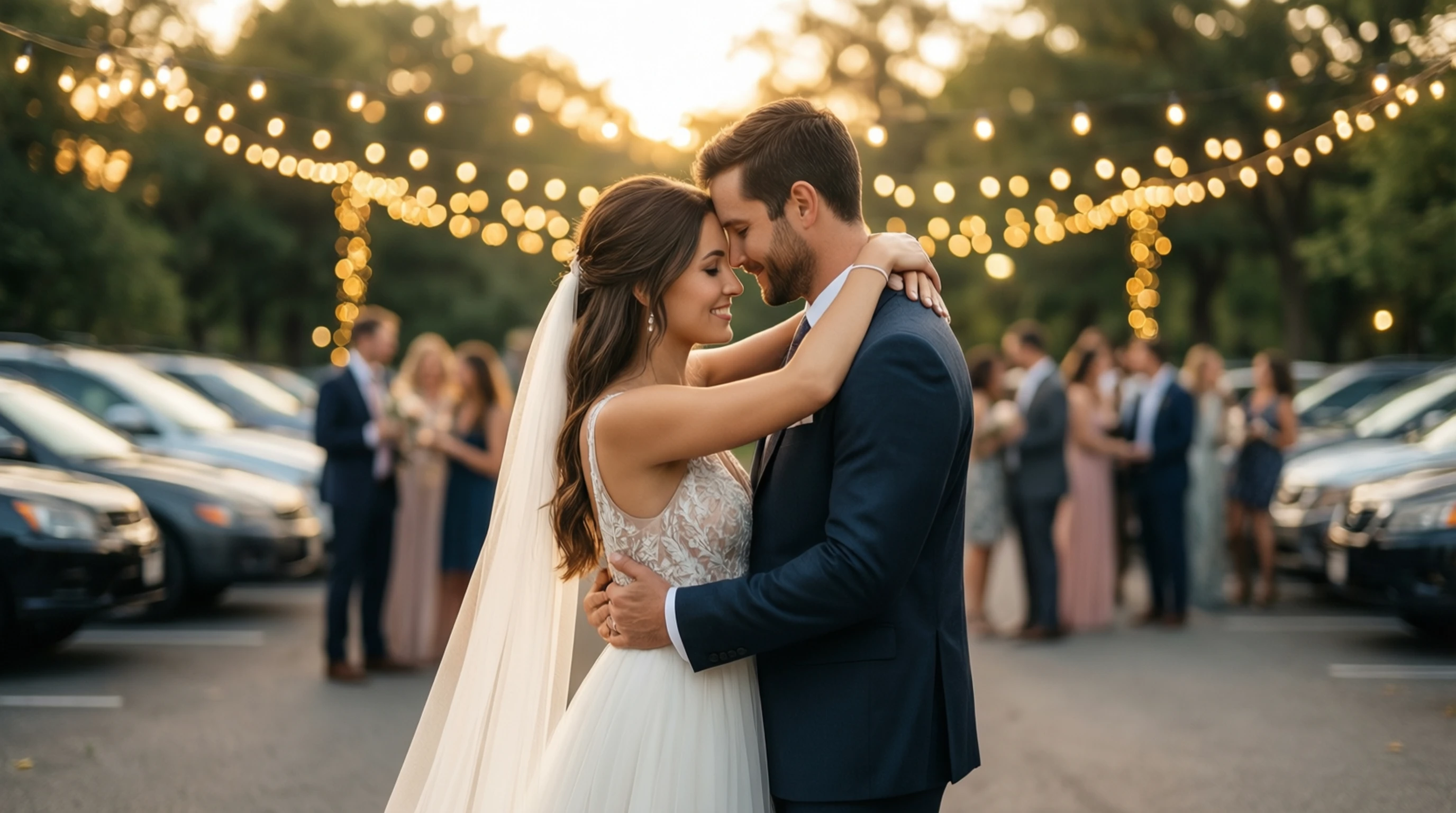
But even the most talented wedding photographer cannot control everything. A guest stepping into the background at the exact wrong moment, an unsightly exit sign glowing behind the altar, construction scaffolding visible through a window, or an overcast sky turning your outdoor ceremony photos flat and grey -- these are the realities of wedding photography. The emotion in the photo is perfect. The background is not.
AI-powered background removal offers a practical, accessible way to rescue those almost-perfect shots. Whether you are a wedding photographer delivering a client gallery, a couple editing your own favorite moments, or someone preparing images for thank-you cards and keepsakes, understanding how to fix distracting backgrounds can transform your wedding photos from good to extraordinary.
Why Even Great Wedding Photos Need Background Fixes
Wedding photographers work under enormous pressure. The timeline is rigid, the lighting changes constantly, venues are often cramped, and there are no second chances for key moments. Even seasoned professionals with years of experience encounter situations where the background detracts from an otherwise beautiful image.
Here are the most common reasons wedding photos end up with problematic backgrounds:
Photobombers and Unintended Guests in the Frame
Uncle Steve checking his phone directly behind the bride during the vows. A child running through the background of your first dance. A server clearing plates during an emotional toast. These moments happen at every wedding, and they pull the viewer's eye away from the subject that matters.
Venue Imperfections
Not every venue is a pristine, camera-ready environment. You might notice:
- Exit signs, fire extinguishers, and electrical panels mounted on walls behind the altar or head table.
- Fluorescent lighting fixtures clashing with carefully designed ambient lighting.
- Worn carpeting, scuffed walls, or mismatched furniture in older venues.
- Parking lots, dumpsters, and loading docks visible through windows or in outdoor transitions.
Environmental Distractions
Outdoor weddings are especially susceptible to background problems that are completely outside anyone's control:
- Power lines and utility poles cutting across sunset portraits.
- Construction equipment, cranes, and scaffolding at nearby properties.
- Traffic, parked cars, and road signs intruding on garden or park ceremony shots.
- Trash cans and portable restrooms placed near outdoor reception areas.
Weather-Related Issues
- Overcast and grey skies that make outdoor ceremony and portrait shots look flat and washed out.
- Harsh midday sun creating unflattering shadows and blown-out highlights.
- Rain or wind that forced a last-minute location change to a less photogenic backup setting.
Timing and Crowd Challenges
- Setup and teardown items visible because the timeline overlapped with vendor logistics.
- Other wedding parties at popular venues sharing the same outdoor photo locations.
- Catering equipment, sound gear, and DJ booths that could not be hidden during key moments.
The good news is that none of these issues need to ruin your favorite photos. With the right tools and techniques, distracting backgrounds can be cleaned up, replaced, or removed entirely.
How AI Background Removal Helps Wedding Photographers and Couples
AI background removal uses advanced deep learning models to analyze an image and separate the foreground subjects from everything behind them at the pixel level. For wedding photography, this technology opens up a range of powerful editing possibilities that were previously time-consuming, expensive, or required advanced Photoshop skills.
Speed and Efficiency
A professional retoucher might spend 20-45 minutes manually masking a bride's veil, intricate lace details, and flyaway hair strands from a complex background. AI can generate an accurate separation in seconds. For photographers delivering galleries of 500+ images, this efficiency is transformative.
Precision With Difficult Details
Wedding attire presents some of the most challenging subjects for background removal. Sheer veils, lace overlays, tulle skirts, and delicate hair styling all require precise edge detection. Modern AI models are trained to handle exactly these semi-transparent and fine-detail elements, producing clean masks that preserve the natural look of the clothing and hair.
Accessibility for Non-Professionals
Couples and family members who want to edit their own wedding photos no longer need professional software expertise. AI-powered tools with simple upload-and-download workflows put professional-quality background removal within reach of anyone.
Wedding Photo Use Cases for Background Removal
The practical applications for wedding photo background removal extend well beyond simple cleanup. Here are the most common and valuable use cases.
Removing Distracting Elements From Ceremony Shots
The ceremony is the emotional heart of the wedding, and these photos are among the most treasured. When a stray guest, piece of equipment, or venue blemish appears in the background of a vow exchange or ring ceremony shot, AI background removal can isolate the couple and officiant, allowing you to either clean up the background or replace it with a more suitable setting.
Practical approach: Upload the ceremony photo, let the AI generate a mask of the primary subjects, download the transparent PNG, and composite it onto a cleaner version of the same venue background -- one taken during a quieter moment without the distractions.
Creating Clean Portraits for Thank-You Cards and Invitations
Thank-you cards, save-the-dates, and wedding announcements require polished portraits with clean, uncluttered compositions. Background removal allows you to:
- Place a couple's portrait on a solid color or subtle gradient that matches the stationery design.
- Create a consistent look across all printed materials regardless of where the original photos were taken.
- Eliminate busy backgrounds that compete with text overlays and graphic design elements.
A portrait taken in a crowded reception hall can become an elegant, studio-quality image suitable for professional printing.
Isolating the Couple for Custom Composites
One of the most creative applications is extracting the couple from one photo and placing them into an entirely different scene. This technique is popular for:
- Fantasy or artistic composites -- the couple walking through a field of flowers, standing before a dramatic mountain vista, or silhouetted against a vibrant sunset that was not present on the actual wedding day.
- Recreating missed shots -- if rain forced the ceremony indoors, you can composite the couple into the original outdoor setting as planned.
- Album cover and feature images that need a specific aesthetic or mood.
Replacing Overcast Skies With Blue Sky or Sunset
Outdoor wedding photos taken under grey, featureless skies lack the warmth and drama that couples envision. Sky replacement is one of the highest-impact edits available:
- Upload the outdoor wedding photo.
- The AI separates the sky from the subjects and landscape.
- Replace the removed sky with a golden hour sunset, a clear blue sky with soft clouds, or a dramatic twilight gradient.
- The result transforms the mood of the entire image while keeping the subjects and foreground completely natural.
This single edit can rescue an entire set of outdoor ceremony or portrait photos that were affected by uncooperative weather.
Creating Transparent Cutouts for Wedding Websites
Many couples build wedding websites that feature photos of themselves, their wedding party, and their families. Transparent PNG cutouts allow photos to be placed over any web background, integrated into custom designs, and layered with text and graphics without the rigid rectangular frame of a standard photo.
Use cases include:
- Hero images on the wedding website homepage.
- Guest book and RSVP page decorations.
- Social media profile images and story graphics with transparent or custom backgrounds.
- Digital invitations and email headers that adapt to different display sizes and themes.
Step-by-Step: Fixing a Wedding Photo With Background Removal
Here is a practical walkthrough for cleaning up a wedding photo using AI background removal.
Step 1: Choose Your Photo
Select the image you want to improve. The best candidates are photos with strong emotional content -- genuine smiles, tender moments, beautiful attire -- that are let down by a distracting or unappealing background. Prioritize your highest-resolution version of the image for the best edge quality.
Step 2: Upload to the Background Removal Tool
Visit our free background removal tool and upload your wedding photo. The tool accepts JPEG, PNG, and WebP formats. Images are automatically processed at up to 1024x1024 resolution for optimal AI analysis.
Step 3: Review the AI-Generated Mask
The AI processes the image in seconds, generating a precise mask that separates the subjects from the background. Examine the result carefully, paying attention to:
- Hair and veil edges -- these should look natural, not choppy or overly smoothed.
- Lace and sheer fabric -- semi-transparent elements should retain their see-through quality.
- Bouquet and accessory details -- flowers, jewelry, and small accessories should be fully preserved.
Step 4: Download the Transparent PNG
Download the processed image as a transparent PNG. This gives you maximum flexibility for the next step, whether that is compositing onto a new background, integrating into a design, or using as-is for a clean cutout.
Step 5: Composite or Enhance
Open the transparent PNG in your preferred editing application and place it onto your desired background. Match the lighting direction and color temperature of the original shot to the new background for a natural result. Apply final adjustments for brightness, contrast, and color consistency.
Step 6: Export for Your Intended Use
Export the finished image at the appropriate resolution and format:
- Print (albums, cards): 300 DPI, TIFF or high-quality JPEG.
- Web (wedding website, social media): 72-150 DPI, JPEG or WebP.
- Design projects (invitations, save-the-dates): Transparent PNG at full resolution.
Tips for Wedding Photographers: Shooting With Editing in Mind
While AI background removal is powerful, the quality of your starting image directly affects the quality of the final result. These shooting tips will make post-processing smoother and more effective.
Capture Clean Backup Shots
During key moments, take a few frames that prioritize a clean background even if the composition is not as dramatic. These can serve as replacement backgrounds when compositing edited versions.
Watch for High-Contrast Edges
AI models perform best when there is reasonable contrast between the subject and the background. Avoid situations where the bride's white dress blends into a white wall or the groom's dark suit disappears into a dark doorway. Adjust your angle or add separation with lighting when possible.
Shoot Slightly Wide and Crop Later
Giving yourself extra space around the subjects in-camera provides a safety margin. It is much easier to crop a well-framed photo than to reconstruct missing edges that were cut off too tight.
Communicate With Vendors About Background Cleanliness
Before the ceremony, walk through the venue and note any background distractions that can be physically moved -- trash cans, extra chairs, signage. A quick conversation with the venue coordinator can eliminate problems that would otherwise require post-processing.
Document the Empty Venue
Arrive early and photograph the venue spaces without people present. These clean background plates are invaluable for compositing work later, giving you a distraction-free version of the exact same environment.
DIY vs Professional Editing: When to Hire an Editor
Not every background fix requires a professional retoucher. Here is a practical guide to help you decide.
DIY With AI Tools Is Ideal For
- Simple background removal for thank-you cards and social media posts.
- Sky replacement on outdoor ceremony and portrait photos.
- Creating transparent cutouts for wedding websites and digital invitations.
- Quick cleanup of one or two standout photos for personal use.
- Budget-conscious couples who want to enhance their own favorites from the photographer's gallery.
Consider Hiring a Professional When
- Complex multi-person composites require seamless blending of elements from multiple images.
- Album-quality retouching is needed for a large set of images with consistent style and color grading.
- Significant reconstruction is required -- such as removing a large object that overlaps with the subjects.
- Commercial reproduction -- if images will be published, exhibited, or reproduced at very large sizes.
- You want peace of mind that the most important photos from the most important day are in expert hands.
A Balanced Approach
Many couples find the best results come from combining approaches. Use AI tools for quick fixes and creative projects while reserving professional retouching for the handful of hero images destined for large prints, album spreads, and framed display.
Preserving a Natural Look: Avoiding Over-Edited Results
The goal of wedding photo editing is to enhance, not to create something that looks artificial. Over-processing is one of the most common pitfalls, especially when background replacement is involved.
Match Lighting and Color Temperature
When placing subjects onto a new background, ensure the lighting direction is consistent. If the sun was coming from the left in the original photo, the new background should reflect that same lighting direction. Mismatched lighting is the most obvious tell of a composite image.
Preserve Natural Skin Tones
Background changes can shift the overall color balance of an image. After compositing, check that skin tones look warm and natural rather than overly saturated, desaturated, or tinted by the new background's color cast.
Keep Edges Soft and Realistic
Hair, veils, and fabric edges should blend naturally into the new background. Overly sharp cutout edges create an obvious "pasted on" appearance. A subtle feathering or a slight edge blur helps the subjects sit naturally in their new environment.
Less Is More
Resist the temptation to replace every background with a dramatic sunset or exotic location. Sometimes the most effective edit is simply removing a distracting trash can or replacing a grey sky with a gentle blue. Subtlety preserves the authentic feel of the moment.
Wedding Album and Print Considerations
If your edited wedding photos will be printed -- for albums, framed portraits, canvas wraps, or stationery -- there are additional technical factors to keep in mind.
Resolution Requirements
| Print Size | Minimum Resolution at 300 DPI |
|---|---|
| 4x6 inches (standard print) | 1200 x 1800 pixels |
| 8x10 inches (framed portrait) | 2400 x 3000 pixels |
| 11x14 inches (large frame) | 3300 x 4200 pixels |
| 16x20 inches (wall art) | 4800 x 6000 pixels |
| 20x30 inches (canvas wrap) | 6000 x 9000 pixels |
When working with AI background removal, always start with the highest resolution source image available. Upscaling a low-resolution processed image will result in soft, blurry prints.
Color Accuracy
Printed photos can look different from what you see on screen. To ensure accurate color reproduction:
- Calibrate your monitor before making color-critical editing decisions.
- Work in sRGB color space for standard prints, or Adobe RGB if your print lab supports it.
- Order a test print before committing to a large album or canvas order.
- Communicate with your print lab about any specific color preferences or concerns.
Paper and Material Selection
The choice of printing material affects how your edited photos appear:
- Glossy paper enhances color vibrancy and contrast but shows fingerprints and glare.
- Matte paper offers a soft, elegant look that works well for wedding albums and is easier to handle.
- Lustre or satin finish provides a balanced middle ground with rich colors and reduced glare.
- Canvas wraps add texture and an artistic quality, ideal for large display prints.
- Metal prints deliver vivid, modern results with exceptional color saturation.
Album Layout Tips
When designing album spreads with edited photos:
- Mix full-background replacements sparingly with naturally-shot images for visual variety and authenticity.
- Maintain consistent color grading across all images in a spread for a cohesive look.
- Use transparent cutout images as design elements alongside traditionally framed photos for creative layouts.
- Test your layout at full print resolution before sending to the album printer.
Frequently Asked Questions
Can AI background removal handle a bride's veil and lace details?
Yes. Modern AI models are specifically trained to detect and preserve semi-transparent and fine-detail elements. Sheer veils, lace overlays, tulle, and intricate beadwork are analyzed at the pixel level, and the generated mask preserves their translucent qualities. The result is a natural-looking cutout that retains the delicate texture of wedding attire rather than creating harsh, artificial edges.
Will editing the background make the photo look fake?
Not if done thoughtfully. The key is matching the lighting, color temperature, and overall mood between the subjects and the new background. Subtle edits -- removing a trash can, replacing an overcast sky, cleaning up a cluttered background -- are virtually undetectable when executed with care. More dramatic changes like full background replacement require attention to lighting consistency but can still look completely natural with proper technique.
What file format should I use for edited wedding photos?
It depends on the intended use. For printing (albums, frames, cards), export as a high-quality JPEG or TIFF at 300 DPI with the full resolution of your source image. For web use (wedding websites, social media), JPEG or WebP at 72-150 DPI provides excellent quality with manageable file sizes. If you need to preserve transparency for design work, use PNG format.
How long does AI background removal take per photo?
Processing a single wedding photo typically takes just a few seconds. The AI analyzes the image, identifies the subjects, and generates a precise separation mask almost instantly. The bulk of your time will be spent on the creative decisions -- choosing a replacement background, adjusting colors, and fine-tuning the composite -- rather than waiting for processing.
Should I edit the RAW file or the JPEG version?
For the best results, perform your basic edits (exposure, white balance, lens correction, color grading) on the RAW file first, then export a high-resolution JPEG or TIFF for AI background removal. This ensures you are working with the highest quality image data for the AI processing step. The AI tool works with standard image formats, so the RAW-to-JPEG conversion should happen before upload.
Transform Your Wedding Photos Today
Every wedding has a handful of images that capture something truly special -- a look, a laugh, a tear, a moment of pure joy. When the only thing standing between that photo and perfection is a distracting background, AI-powered background removal offers a fast, affordable, and remarkably effective solution.
Whether you are a professional photographer looking to streamline your editing workflow, a couple wanting to create beautiful keepsakes from your wedding day, or someone designing custom thank-you cards and invitations, the ability to cleanly remove and replace backgrounds puts professional-quality results within reach.
Ready to give your wedding photos the backgrounds they deserve?
Try Our Free Background Removal Tool Now
Upload a wedding photo and see the results in seconds. No account required, no watermarks, and no cost. Your most cherished moments deserve to look their absolute best.